

6
6
Table of Contents

In modern cloud architectures, organizations often operate and manage multi-cloud environments, leveraging the strengths of different cloud providers such as Amazon Web Services (AWS) and Oracle Cloud Infrastructure (OCI).

To enable secure communication between workloads running across these platforms, a Site-to-Site VPN is one of the most reliable and cost-effective solutions.

This blog walks through a complete implementation of an AWS ↔ OCI Site-to-Site VPN using static routing and IPSec (IKEv1).

By the end of this guide, AWS VPC and OCI VCN will be connected through a private, encrypted tunnel, allowing seamless network communication.

Objective of This Setup

The primary goals of this configuration are:

  • Establish a secure private connection between AWS and OCI
  • Enable bi-directional communication between AWS VPC and OCI VCN
  • Use static routing for predictable and controlled traffic flow
  • Ensure IPSec tunnel compatibility between AWS and OCI

Network Architecture Overview

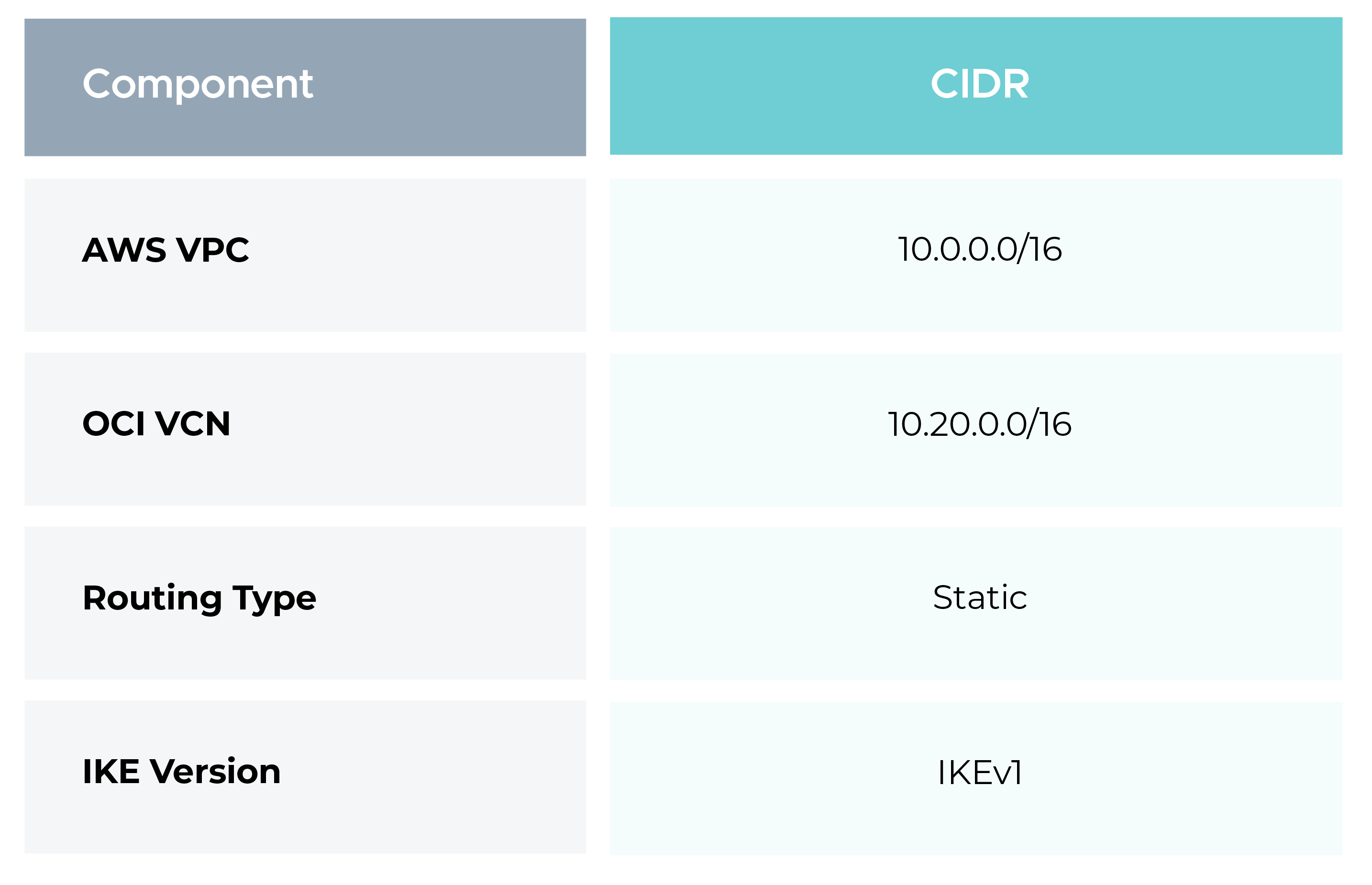
Before starting the configuration, define the network boundaries clearly.

Network architecture overview

Static routing is used in this setup, meaning all network prefixes are manually defined on both sides. This approach is simple and effective when network ranges are well-known and do not change frequently.

AWS Configuration

On the AWS side, the VPN architecture consists of:

  • A Virtual Private Gateway (VGW) attached to the VPC
  • A Customer Gateway (CGW) representing the OCI VPN endpoint
  • A Site-to-Site VPN connection between AWS and OCI

1. Creating a Virtual Private Gateway (VGW)

A Virtual Private Gateway acts as the AWS-managed VPN endpoint that connects your VPC to external networks such as OCI.

Steps:

  • Navigate to AWS Console → VPC
  • Select Virtual Private Gateways
  • Click Create Virtual Private Gateway
  • Provide a name: aws-vgw
  • Create the gateway

2. Attaching the VGW to the VPC

The VGW must be attached to the target VPC to enable VPN traffic flow.

Steps:

  • Select the created VGW
  • Choose Actions → Attach to VPC
  • Select the VPC: 10.0.0.0/16
  • Attach

This step logically associates the VPN gateway with the AWS VPC.

3. Creating a Customer Gateway (CGW)

A Customer Gateway represents the remote VPN device, in this case, the OCI IPSec tunnel public ip.

Since OCI tunnel public IP addresses are available only after tunnel creation, a temporary placeholder IP is used initially.

Steps:

  • Go to VPC → Customer Gateways
  • Click Create Customer Gateway
  • Name: oci-cgw
  • Routing: Static
  • IP Address: Temporary public IP (placeholder). The actual OCI IPSec tunnel public IP will be updated later. AWS requires a public IP address as per the documentation.
  • Create

AWS does not allow modification of a Customer Gateway IP address later, which is why a new CGW will be created once the actual OCI tunnel IP is available.

4. Creating the Site-to-Site VPN Connection

This step establishes the actual IPSec VPN connection between AWS and OCI.

Steps:

  • Navigate to VPC → Site-to-Site VPN Connections
  • Click Create VPN Connection
  • Name: aws-oci-vpn
  • Target Gateway Type: Virtual Private Gateway
  • Virtual Private Gateway: aws-vgw
  • Customer Gateway: oci-cgw
  • Routing Options: Static

Static Route Prefix:

10.20.0.0/16 -  This CIDR represents the OCI VCN network reachable from AWS.

Pre-Shared Key Considerations

AWS automatically generates pre-shared keys containing special characters.

However, OCI does not support special characters in pre-shared keys.

Important constraints:

  • Allowed characters: A–Z, a–z, 0–9
  • Special characters (. - _) are not supported

Example of a compatible pre-shared key: psd43mdk620djn

This key must be identical on both the AWS and OCI sides

5. AWS Tunnel Parameters (Reference)

Download the AWS VPN configuration and note the parameters for Tunnel-1.

These settings must match exactly on the OCI side.

IKE Phase 1

  • IKE Version: IKEv1
  • Encryption: AES-128-CBC
  • Authentication: SHA1
  • Diffie-Hellman Group: Group 2
  • Lifetime: 28800 seconds

IPSec Phase 2

  • Protocol: ESP
  • Encryption: AES-128-CBC
  • Authentication: HMAC-SHA1-96
  • PFS: Group 2
  • Lifetime: 3600 seconds

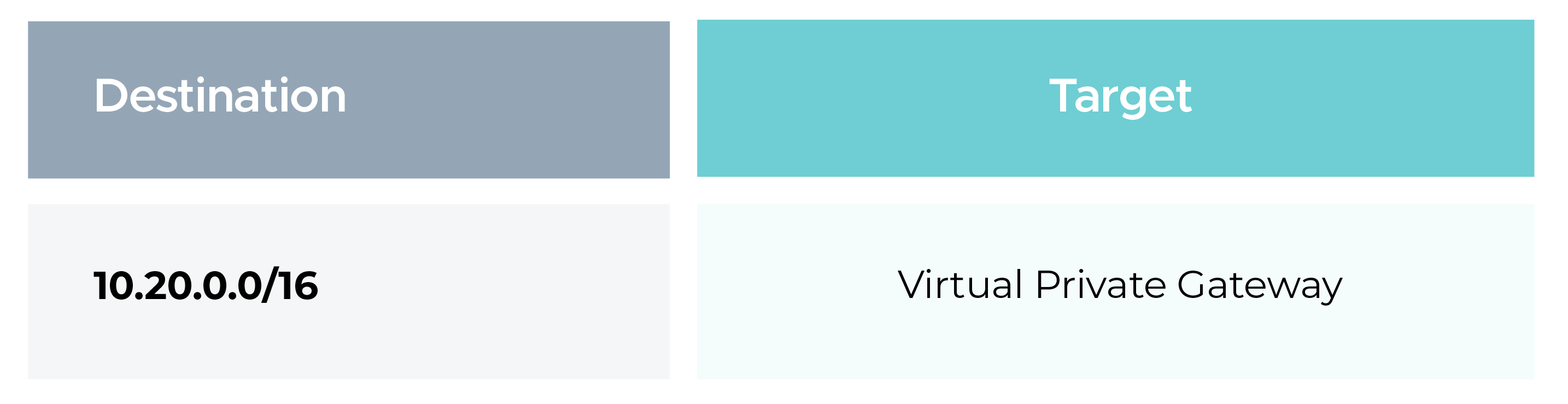
6. Updating AWS Route Tables

To route traffic destined for OCI through the VPN, update the AWS subnet route tables.

6. Updating AWS Route Tables

OCI Configuration
  • On the OCI side, the equivalent components are:
  • Dynamic Routing Gateway (DRG)
  • Customer-Premises Equipment (CPE)
  • IPSec Connection

7. Creating a Dynamic Routing Gateway (DRG)

A DRG in OCI functions similarly to an AWS VGW.

Steps:

  • OCI Console → Networking
  • Dynamic Routing Gateways → Create
  • Name: oci-drg

8. Attaching the DRG to the VCN

  • Open the created DRG
  • Create a VCN Attachment
  • Select VCN: 10.20.0.0/16

9. Creating Customer-Premises Equipment (CPE)

CPE represents the AWS VPN endpoint from OCI’s perspective.

Steps:

  • Networking → Customer-Premises Equipment
  • Name: aws-cpe
  • IP Address: AWS VPN tunnel outside IP
  • Vendor: Other

10. Creating the IPSec Connection

This establishes the OCI side of the VPN tunnel.

Basic Configuration

  • Name: oci-aws-vpn
  • CPE: aws-cpe
  • DRG: oci-drg
  • Routing Type: Static
  • Static Route CIDR: 10.0.0.0/16

Tunnel Configuration and Phase Settings

  • Pre-Shared Key: Same as AWS
  • IKE Version: IKEv1
  • Inside Tunnel IPs: From AWS VPN configuration

Phase 1

  • Encryption: AES-128-CBC
  • Authentication: SHA1
  • Diffie-Hellman Group: 2
  • Lifetime: 28800 seconds

Phase 2

  • Encryption: AES-128-CBC
  • Authentication: HMAC-SHA1-128
  • (OCI does not support HMAC-SHA1-96)
  • PFS: Group 2

Lifetime: 3600 seconds

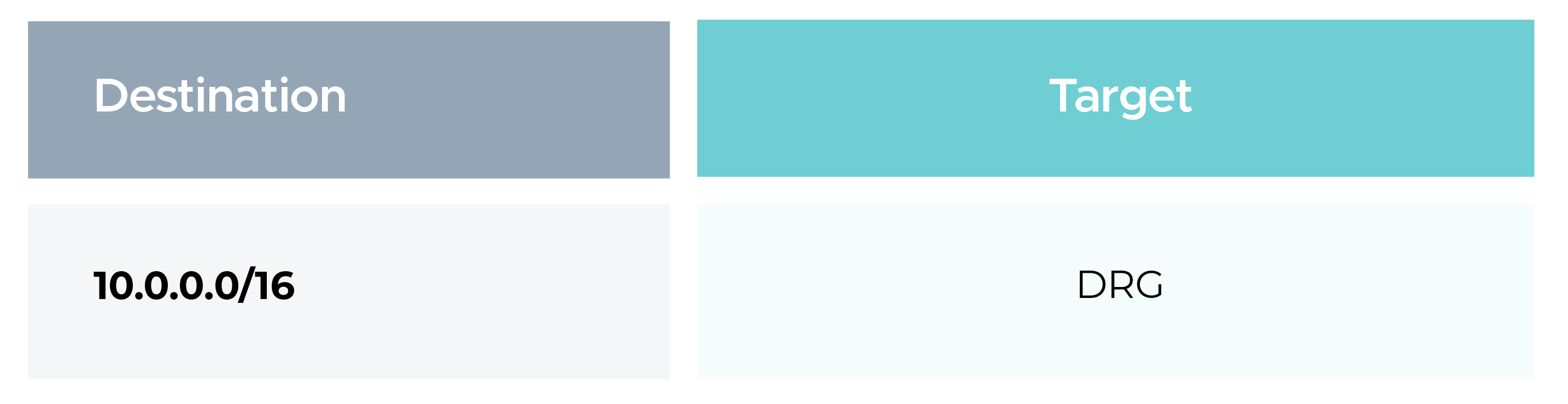
11. Updating OCI Route Tables

Update the OCI VCN subnet route tables to forward AWS traffic via DRG.

11. Updating OCI Route Tables

Updating the AWS Customer Gateway (Final Step)

Once the OCI tunnel public IP is available:

  1. Create a new Customer Gateway in AWS
  • Name: oci-cgw-active
  • IP Address: OCI IPSec tunnel public IP
  1. Modify the existing Site-to-Site VPN connection
  2. Associate it with the new Customer Gateway
  3. Save changes

Validating the VPN Connection (End-to-End Testing)

After completing the AWS ↔ OCI Site-to-Site VPN configuration, it is critical to validate connectivity at the application and network level.

The most reliable way to test this setup is by deploying compute instances on both sides and verifying private IP communication over the VPN tunnel.

Test Scenario Overview

For validation, we will:

  • Launch an AWS EC2 instance in AWS
  • Launch a Compute instance in OCI
  • Use private IP addresses only
  • Test ICMP (ping) and SSH connectivity between both instances

This confirms:

  • VPN tunnel is UP
  • Routing is correct on both sides
  • Security rules allow traffic
  • Traffic is flowing through the IPSec tunnel, not the public internet

Step 1: Launch Test Instances

AWS Side (EC2)

  • Launch an EC2 instance in the AWS VPC (10.0.0.0/16)
  • Place the instance in a subnet associated with the VPN route table
  • Assign only a private IP (public IP is optional and not required for VPN testing)
  • Use Amazon Linux / Ubuntu

Example:

AWS EC2 Private IP: 10.0.1.10

OCI Side (Compute Instance)

  • Launch a Compute instance in the OCI VCN (10.20.0.0/16)
  • Place it in a subnet whose route table points to the DRG
  • Assign a private IP

Example:

OCI Instance Private IP: 10.20.1.10

Step 2: Update Security Groups and Security Lists

By default, cloud firewalls block cross-network traffic.
To allow VPN traffic, security rules must be updated on both AWS and OCI sides.

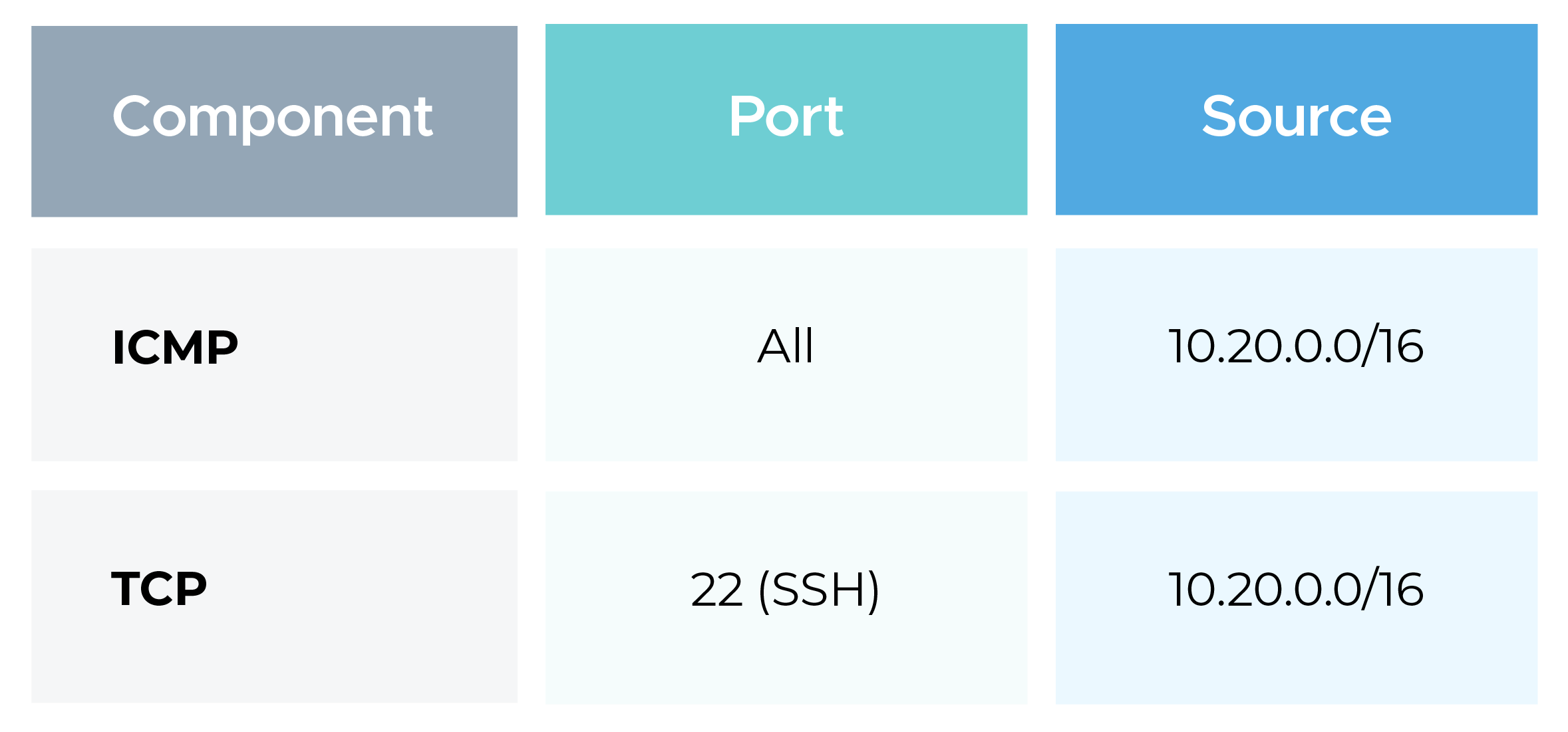
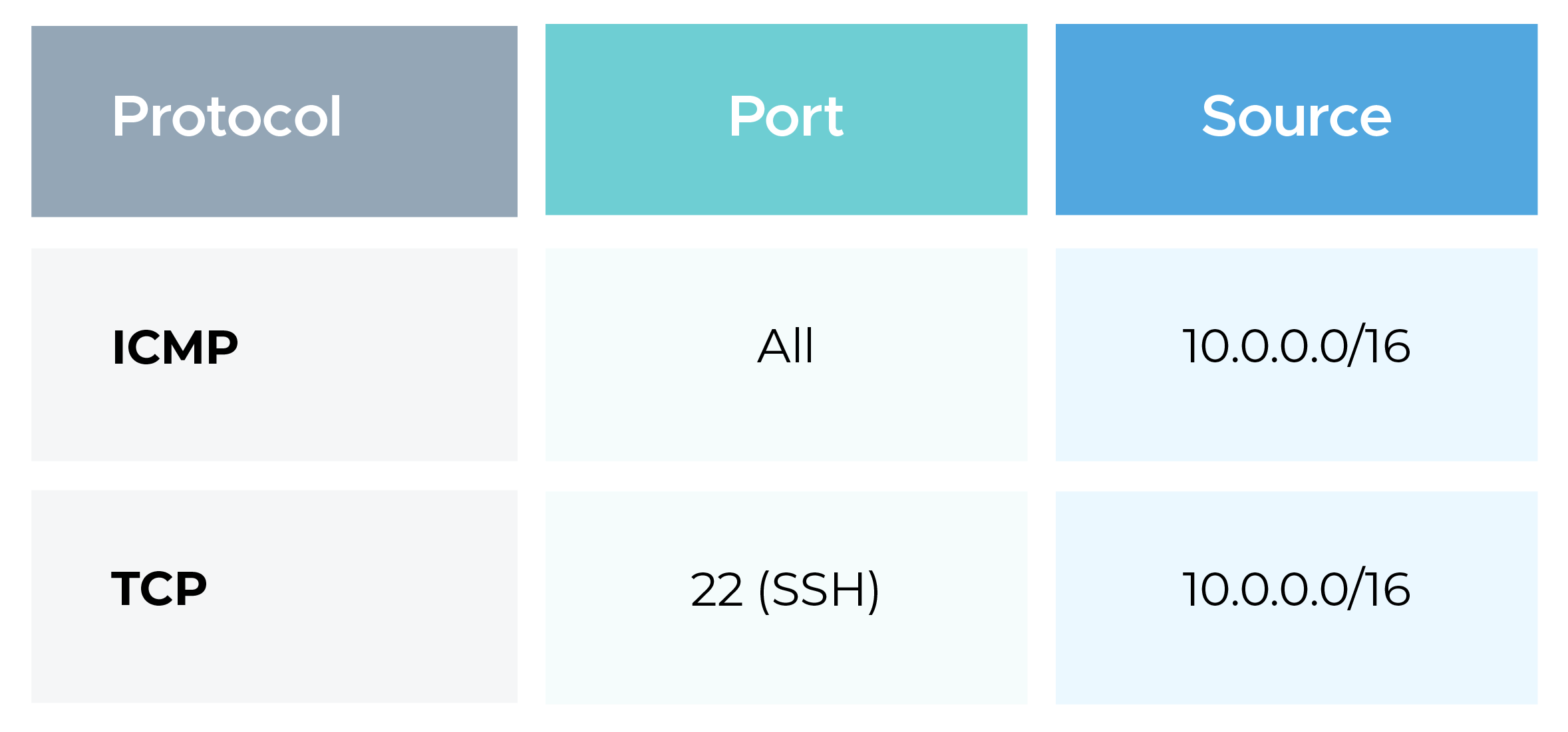
AWS Security Group Configuration

Update the EC2 Security Group attached to the AWS instance.

Inbound Rules:

AWS Security Group Configuration

Outbound Rules:

  • Allow all traffic (default is usually sufficient)

This allows ping and SSH requests from OCI to AWS.

OCI Security List / Network Security Group

Update the Security List or NSG associated with the OCI subnet or instance.

Ingress Rules:

OCI Security List / Network Security Group

Egress Rules:

  • Allow traffic to 10.0.0.0/16

This allows AWS-originated traffic to reach OCI instances.

Step 3: Verify Route Tables

Before testing connectivity, double-check routing on both sides.

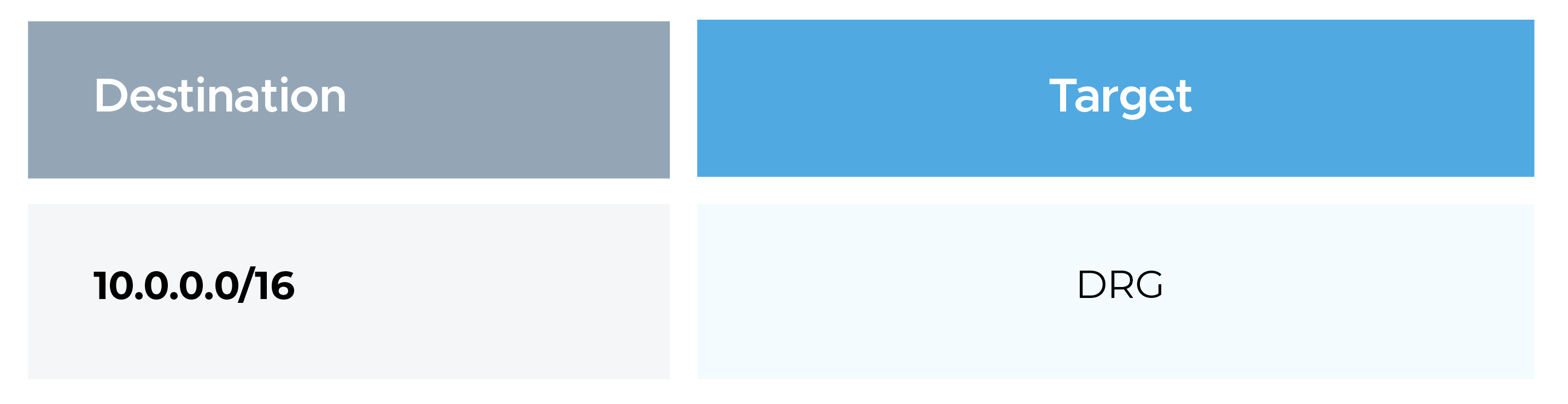
AWS Route Table

Ensure the subnet route table contains:

Step 3: Verify Route Tables

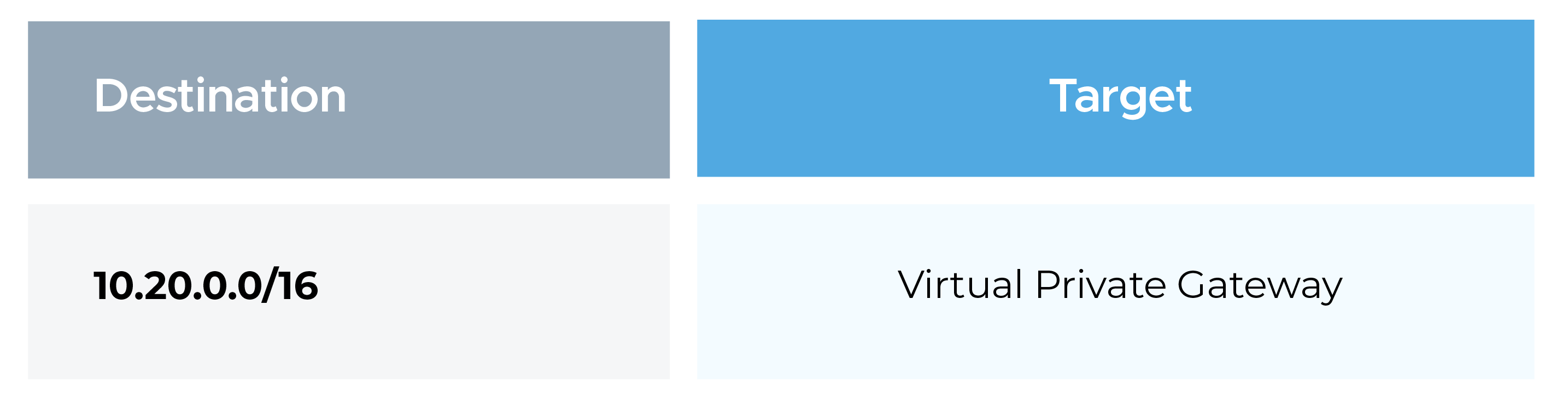
OCI Route Table

Ensure the subnet route table contains:

Ensure the subnet route table contains:

If routes are missing or incorrect, traffic will not traverse the VPN tunnel.

Step 4: Test ICMP Connectivity (Ping)

From AWS EC2 → OCI Instance

Login to the AWS EC2 instance and run:

ping 10.20.1.10

Expected result:

  • Successful ICMP replies
  • Low latency
  • No packet loss

From OCI Instance → AWS EC2

Login to the OCI instance and run:

ping 10.0.1.10

If ping works in both directions, it confirms:

  • VPN tunnel is active
  • Routing is symmetric
  • Firewalls allow ICMP traffic

Conclusion

An AWS to OCI Site-to-Site VPN using static routing provides a secure and reliable multi-cloud connectivity solution. With correctly aligned tunnel parameters, routing, and security configurations, encrypted communication is established over private IP addresses. Successful validation using private IP ping confirms that the VPN tunnel is operational and traffic is flowing correctly between AWS and OCI with minimal operational overhead.

12
Let's discuss your cloud challenges and see how CloudKeeper can solve them all!
Meet the Author
  • Pritam Kumar
    DevOps Engineer

    Pritam possesses strong expertise in AWS, CI/CD, and Infrastructure as Code. He focuses on designing scalable, automated cloud environments and enhancing overall system performance.

Leave a Comment

Speak with our advisors to learn how you can take control of your Cloud Cost