

DevOps Engineer
Abhay is a cloud technology professional specializing in AWS infrastructure and automation.


Find your cloud savings in under 5 minutes

Get a $100 reward on signup

22 Oct, 2026 | 7 Min read

Your developers want Kiro. Your finance team wants one bill. Your security team wants one place to control who gets in. Good news: AWS IAM Identity Center gives all three of them what they want, and the setup takes less time than your next stand-up.
I recently set this up end to end in a fresh AWS account and took screenshots at every step. This post walks you through the same path, from the admin console to the first sign-in inside the Kiro IDE.
The short version
Kiro also lets people sign in on their own with Google, GitHub or an AWS Builder ID. That works well for individuals, and in that case, the user handles payment through Stripe. For a team, though, the organization route is much cleaner:
Tick these off first. It saves a lot of back and forth later.
A tip from experience: if your company uses AWS Organizations, set up AWS IAM Identity Center as an organization instance before you touch Kiro. The Kiro docs are clear that an account instance cannot be upgraded to an organization instance later. You would have to delete it and start over, and nobody enjoys that.
You do this part once. After that, adding a new person is just a few clicks.
Sign in to the AWS Management Console and search for Kiro. Check the Region selector at the top right. Pick a supported Region, because this is where your Kiro profile will live.
You may also see a Sign up in Kiro.dev button with a small external-link icon. That one opens kiro.dev in a new tab and is meant for individual sign-ups. For a team setup, stay inside the AWS console.
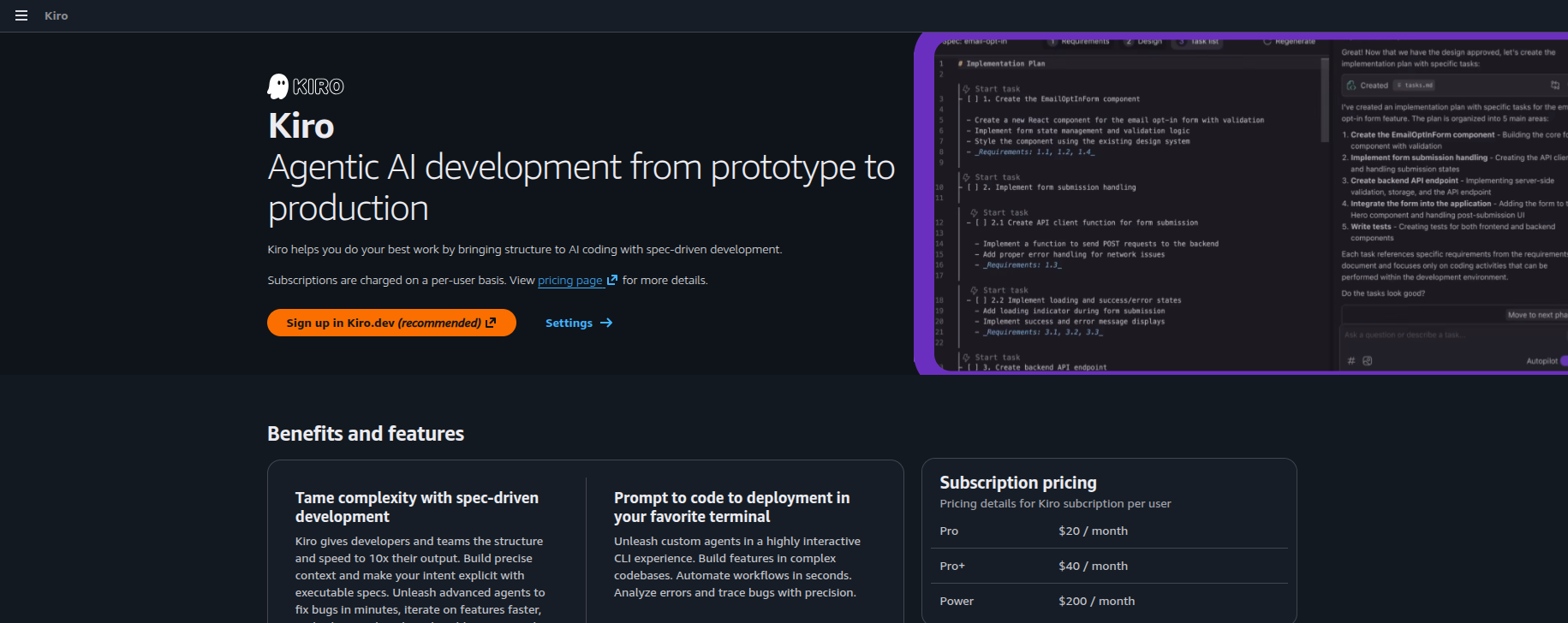
Start the sign-up from the Kiro console. The official docs call this button Sign up for Kiro, though console labels do change from time to time. You know you are in the right place when a dialog opens inside the AWS console and says Kiro will be enabled in this AWS account. It also tells you that Kiro collects aggregated usage metrics for your dashboard, which you can turn off later from the Kiro Settings page. Choose Enable.
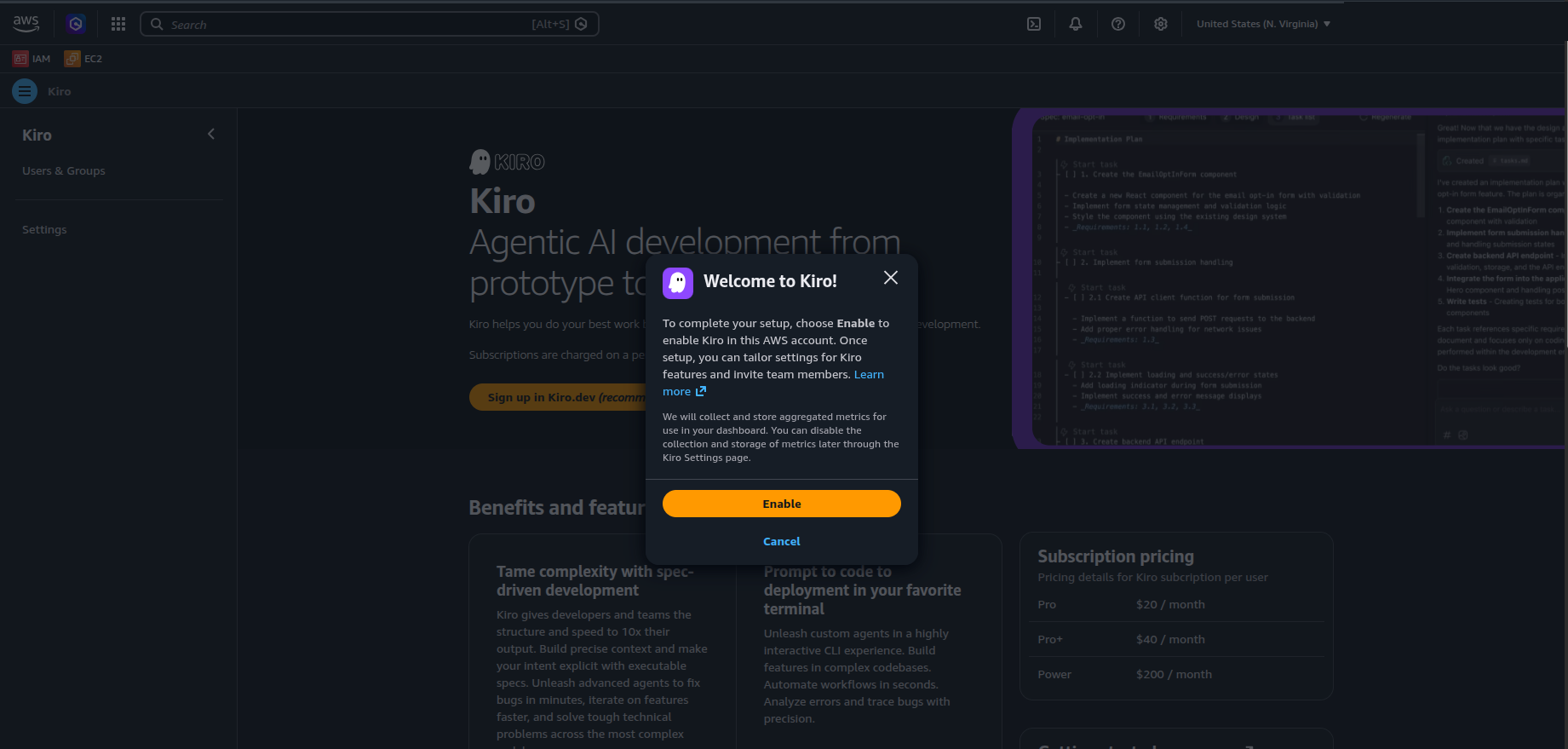
One small note: if your account has no AWS IAM Identity Center yet, the console may first ask you to create a user, and it also offers a link to connect your own identity provider. In my test account, this created a standalone Identity Center instance. That is fine for a quick trial, but see the tip above if you run AWS Organizations.
You land on Users & Groups, under “Add your team to Kiro”. On the right side, note two things:
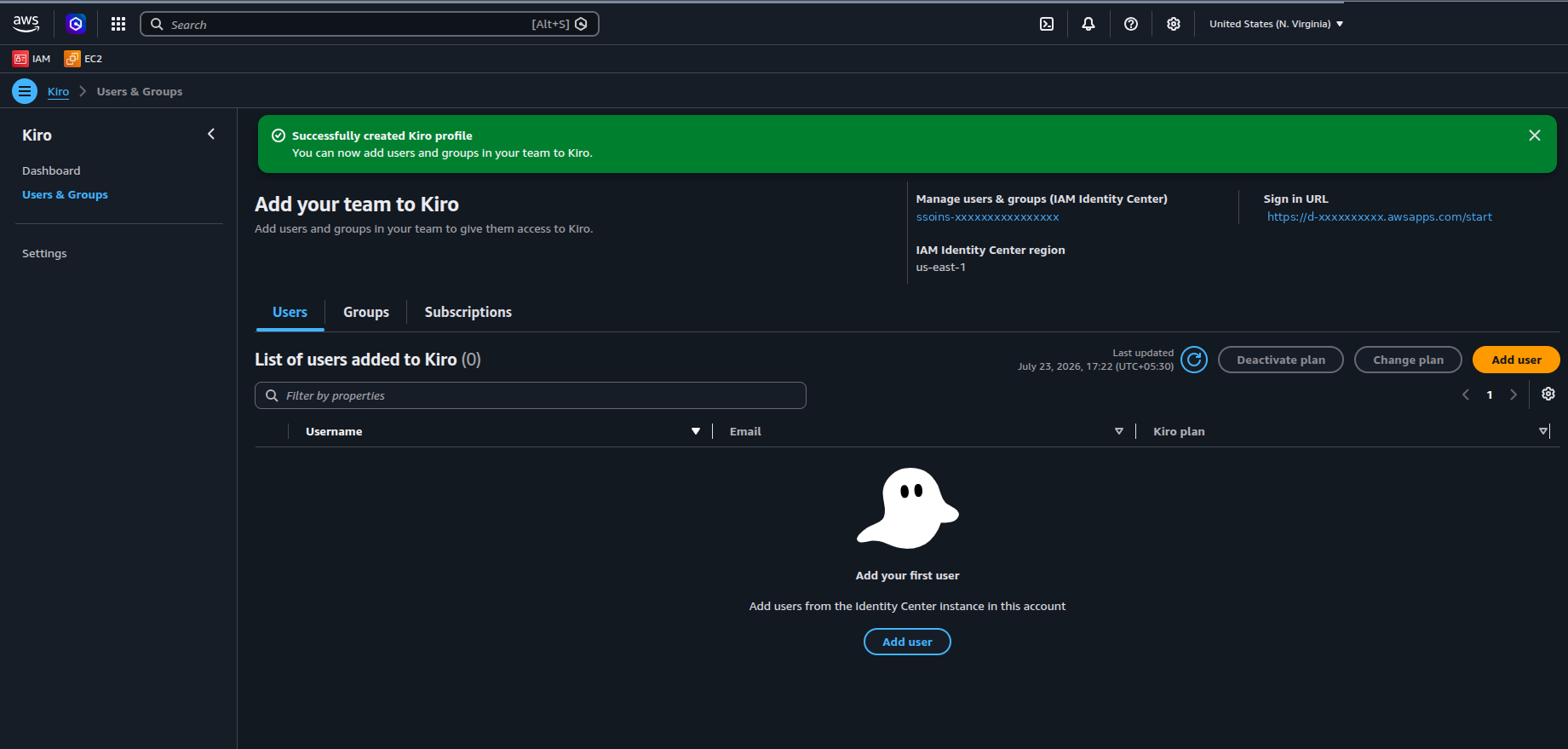
Choose Add user (or switch to the Groups tab and choose Add group).
Pick a plan: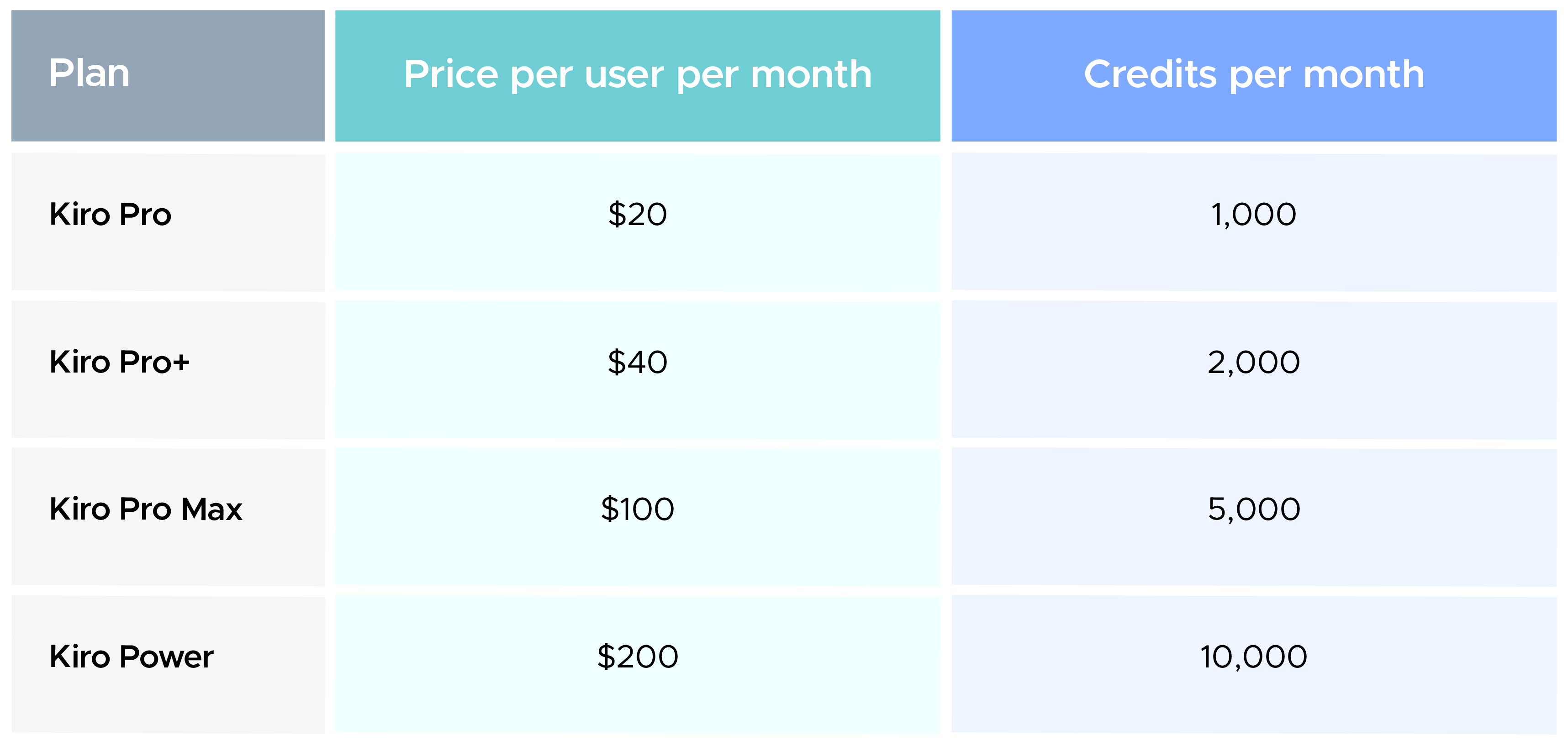
Every paid plan includes everything in Kiro Free. If someone runs out of credits, overage is opt-in and costs $0.04 per credit. Prices do not include taxes such as VAT or sales tax.
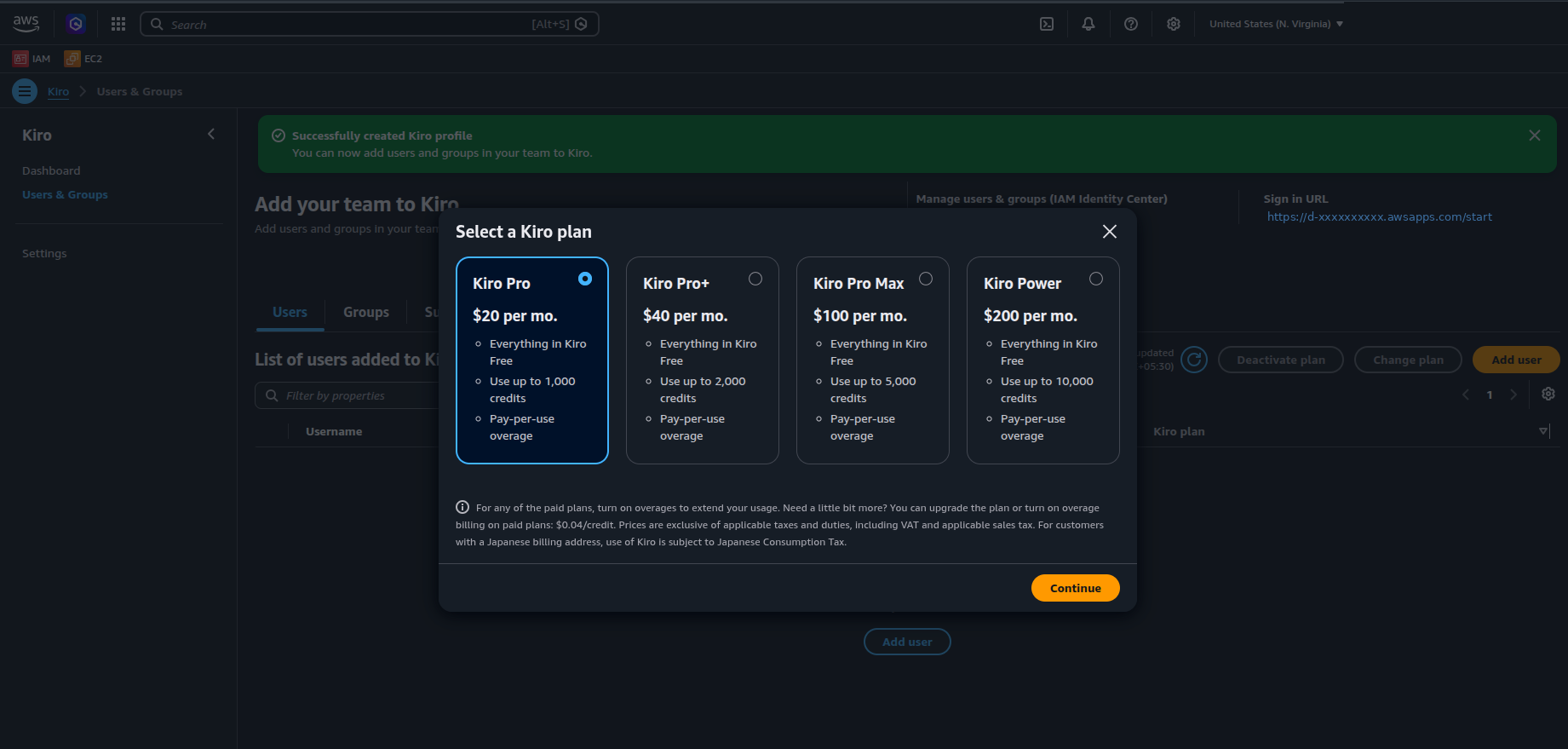
Not sure which plan to pick? One simple approach is to start on Pro, watch the usage dashboard for a few weeks, then upgrade the heavy users. Upgrades take effect right away.
Search for the user or group in your AWS Identity Center directory, or create a new user if they are not there yet. Confirm, and you will see a green banner that says the subscription was created.
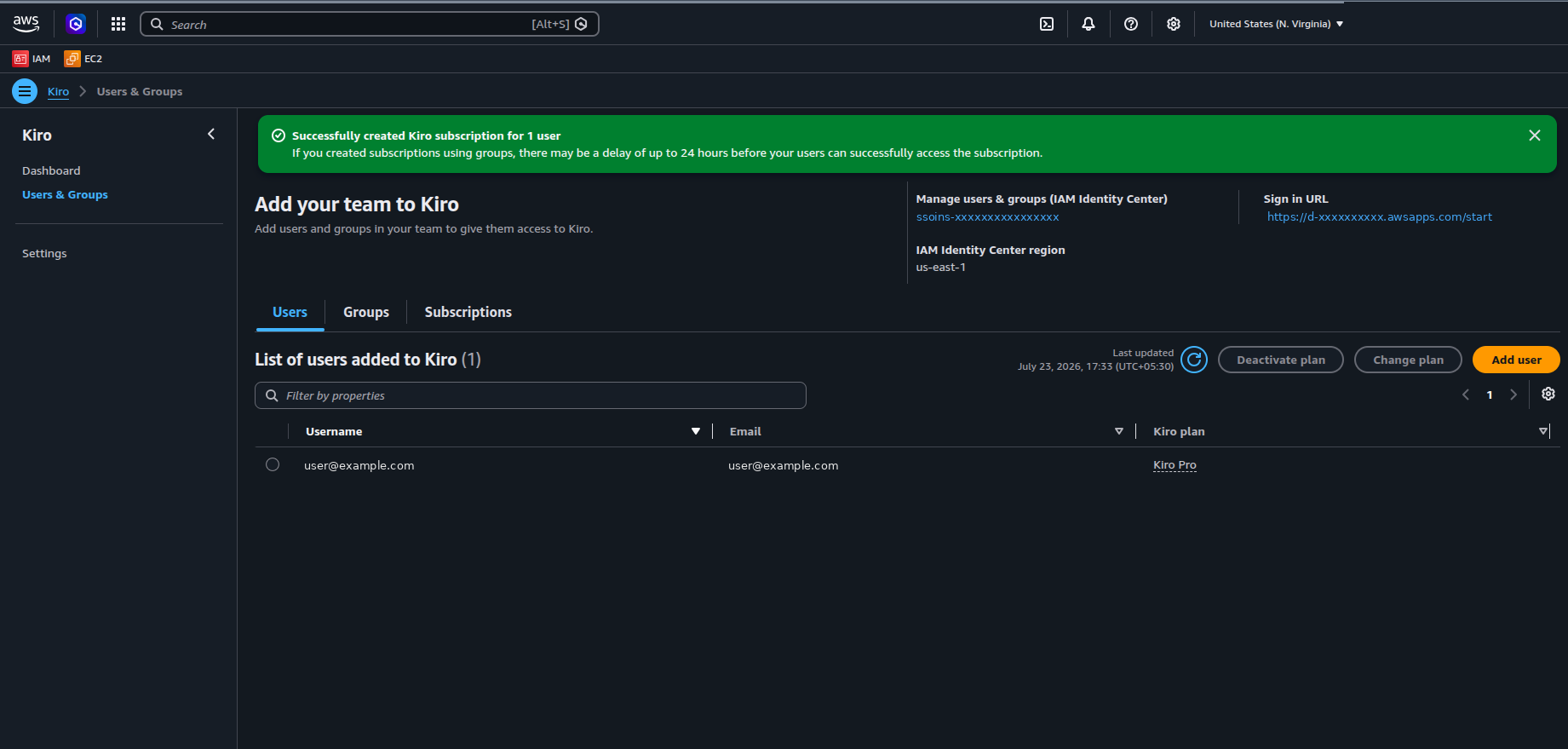
Read that banner carefully. If you subscribed a group, it can take up to 24 hours before the members can use Kiro.
That is it for the admin. Time for a coffee.
Now the fun part moves to your developers. Share this section with them.
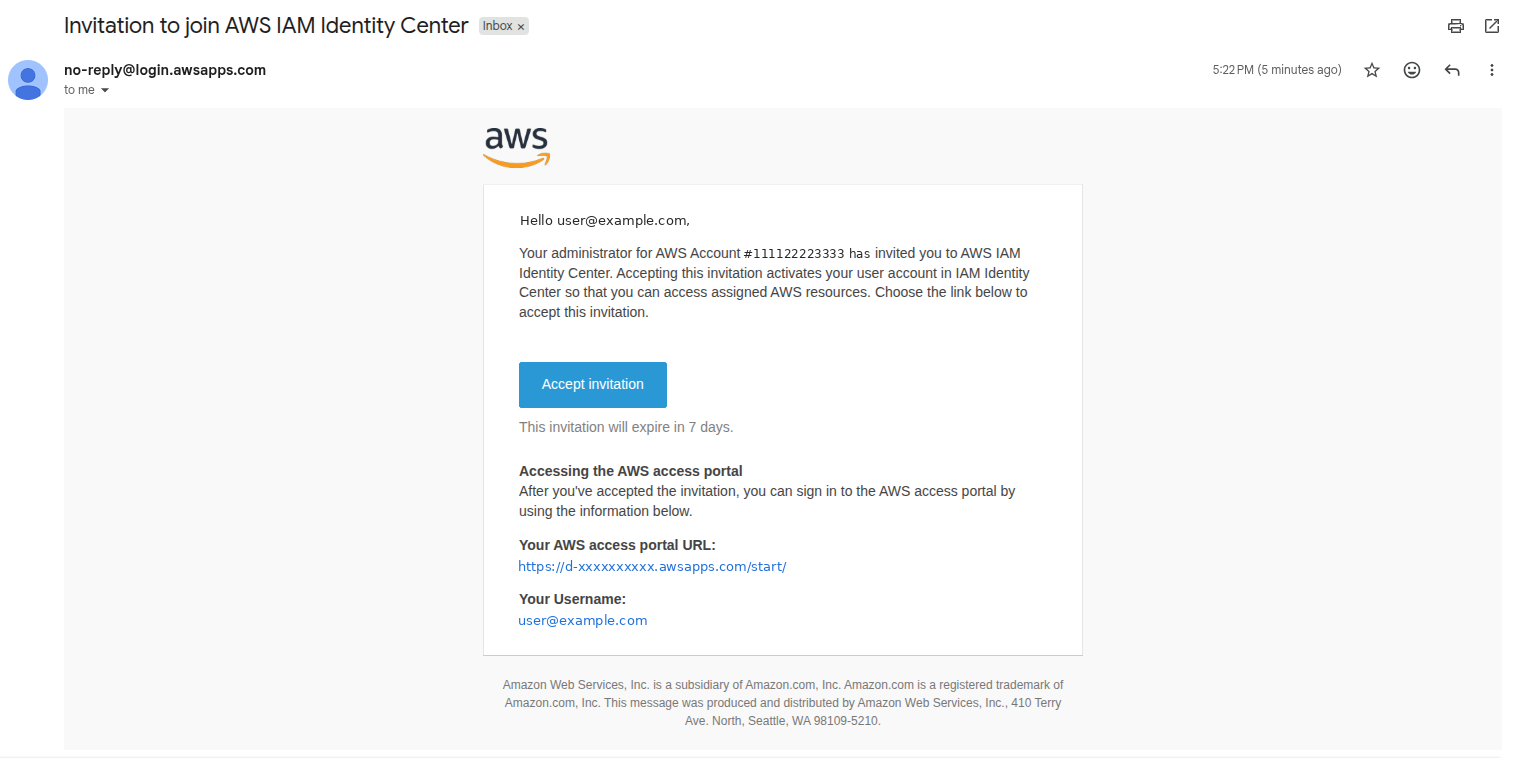
New Identity Center users get an email called Invitation to join AWS IAM Identity Center. It comes from no-reply@login.awsapps.com or no-reply@signin.aws. It includes your access portal URL and your username. Choose Accept invitation.
The invite expires in 7 days, so do not leave it sitting in your inbox.
You land on a “New user sign up” page. Type a new password twice and choose Set new password.
If your organization requires MFA (and it should), you are asked to register a device right away. You can pick an authenticator app, a security key like a YubiKey, or a built-in authenticator like Touch ID or Windows Hello.
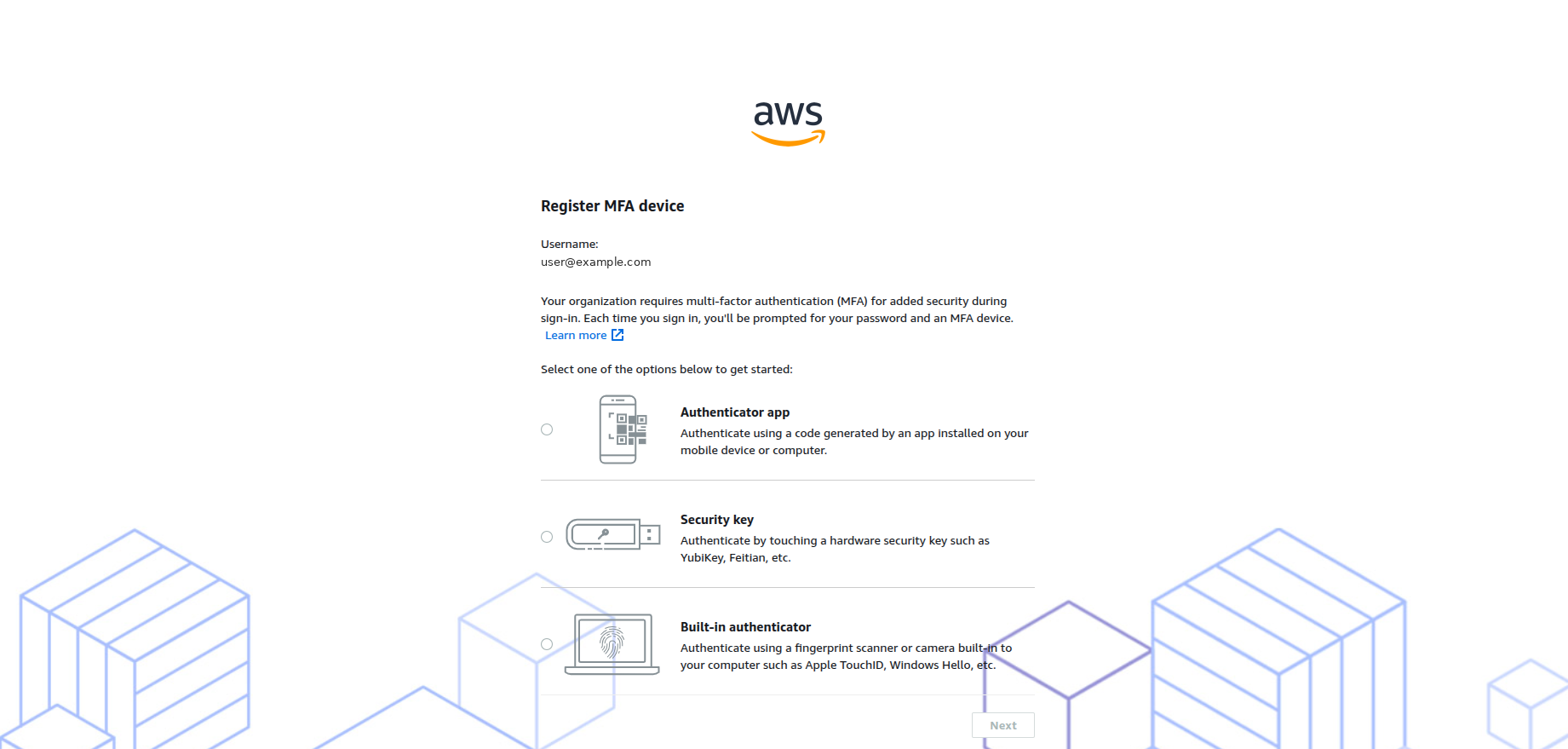
On new AWS IAM Identity Center setups, the default is to ask users to register MFA at their first sign-in, so most people will see this screen.
You may also get a separate Verify your email message from the same sender. Click the link, and you will see a short “Your email has been verified” page. This link also expires in 7 days.
Sign in at your access portal URL with your username, password and MFA code. Open the Applications tab. You should see a Kiro tile with a name like KiroProfile-us-east-1. If the tile is there, your subscription has reached you.
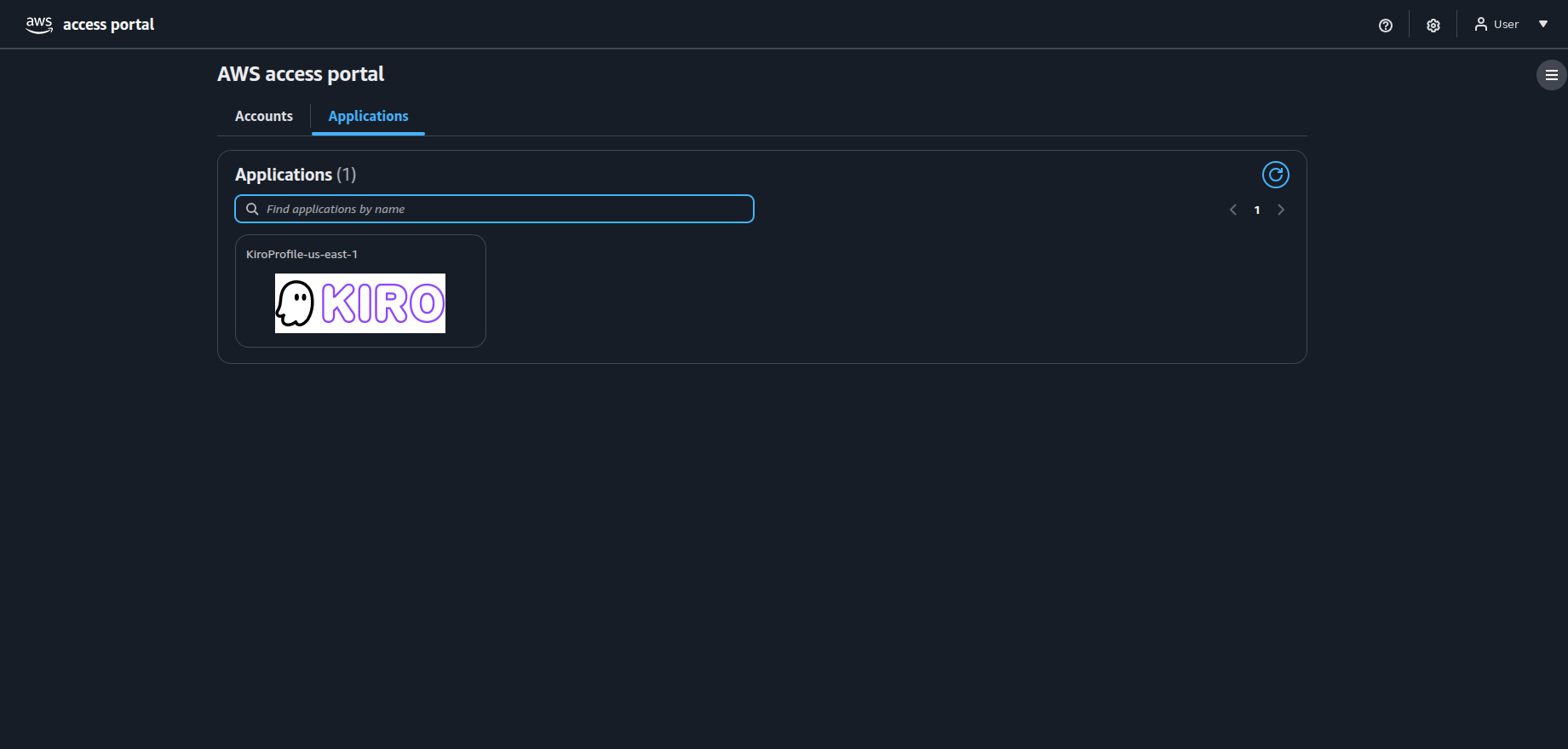
Almost there. This is the part where the ghost logo finally shows up.
Go to kiro.dev/downloads and pick your operating system. There are builds for macOS (Apple Silicon and Intel), Windows and Linux. The CLI and web versions are on the same page if you prefer those.
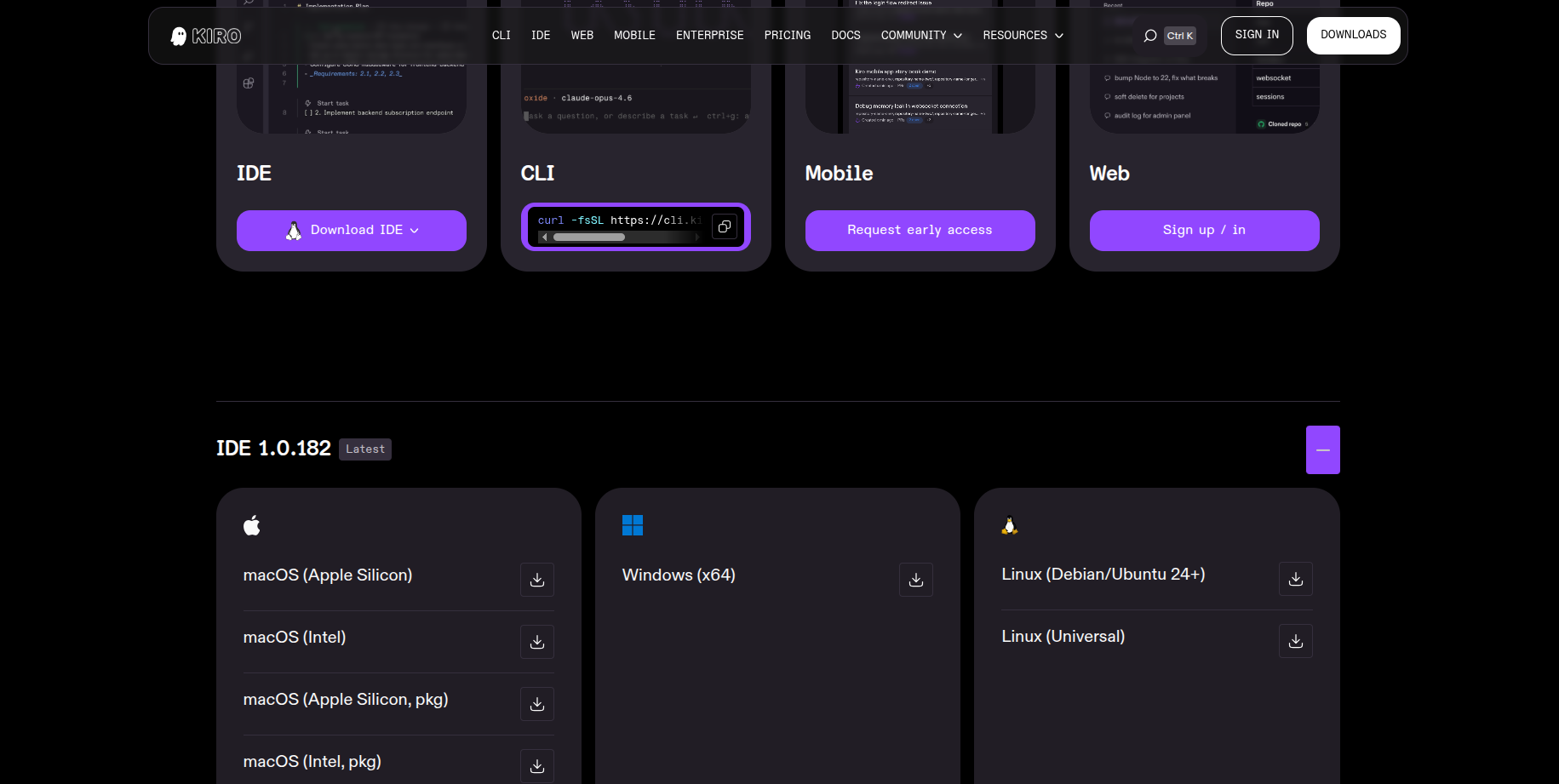
On macOS and Windows, run the installer like any other app. On Debian or Ubuntu, open a terminal in the folder where the file was saved and run:
sudo apt install ./kiro-ide-*-stable-linux-x64.deb
The version number in the file name changes with every release, which is why the command uses a *.
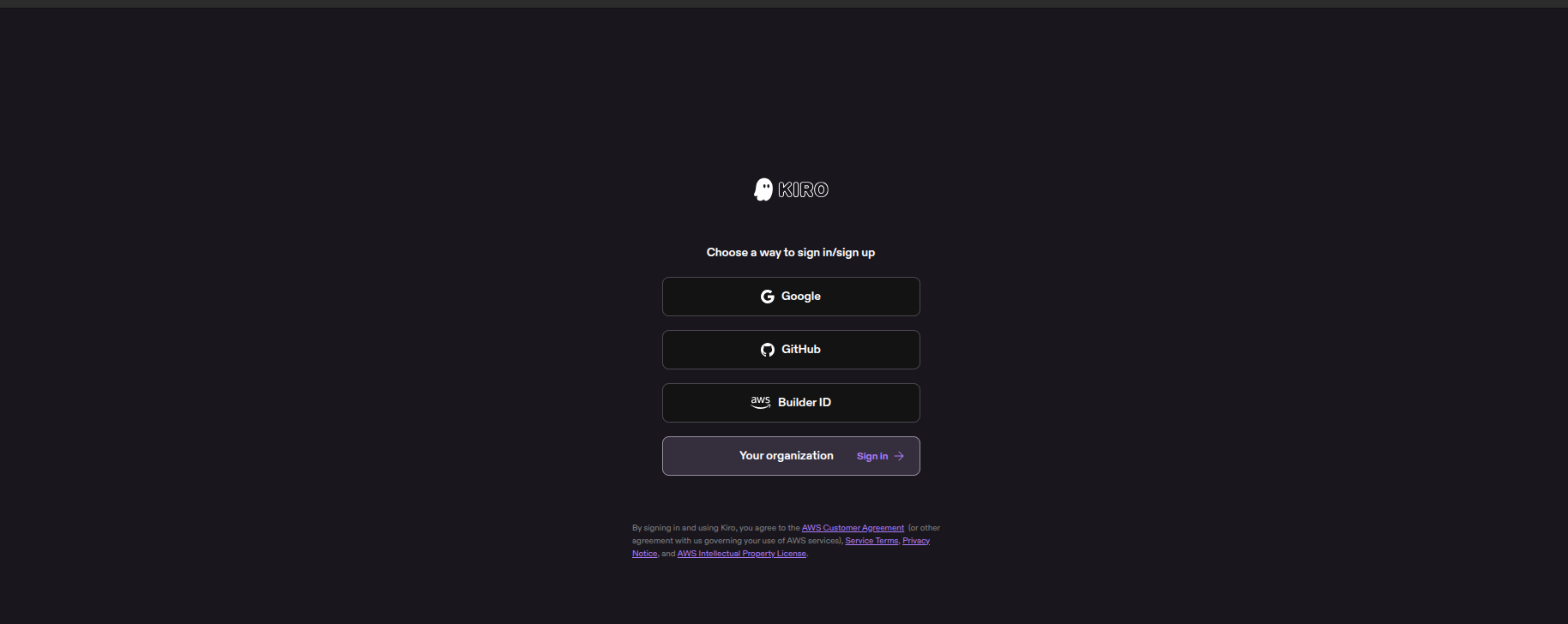
Open Kiro and choose Sign in. A browser page asks how you want to sign in. Ignore Google, GitHub and Builder ID. Choose Your organization.
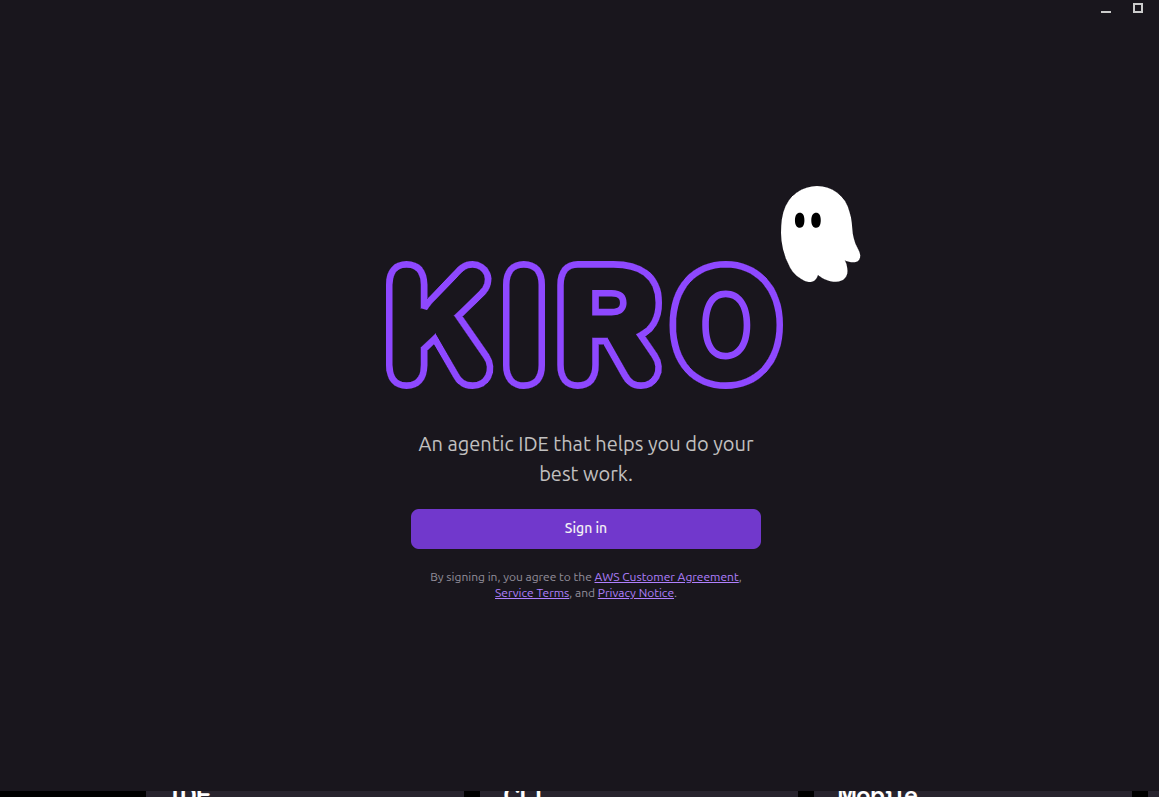
Kiro asks for two things, and your admin already has both from Part 1, Step 3:
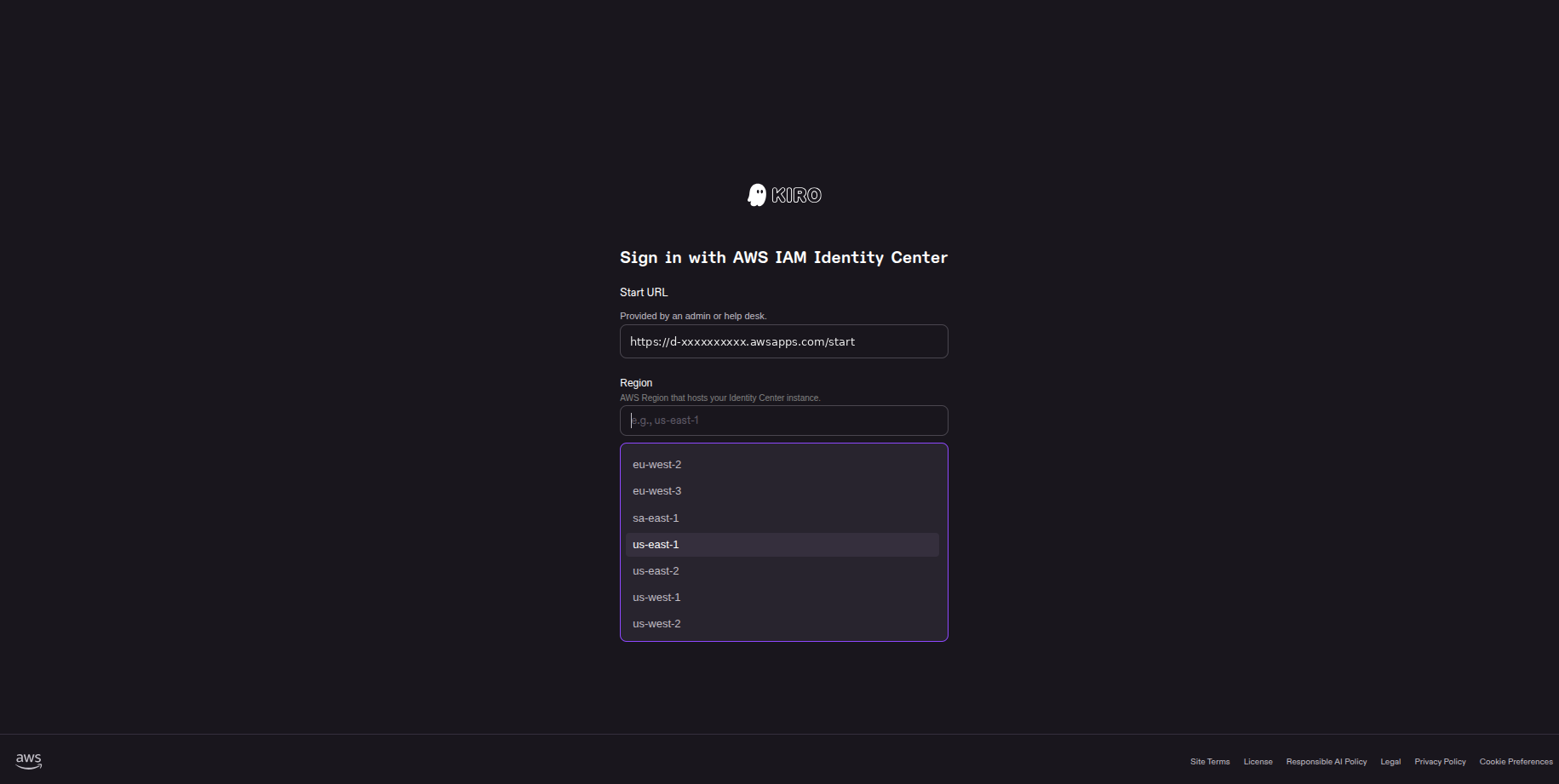
If sign-in fails here, check the Region first. It is the easiest value to mix up.
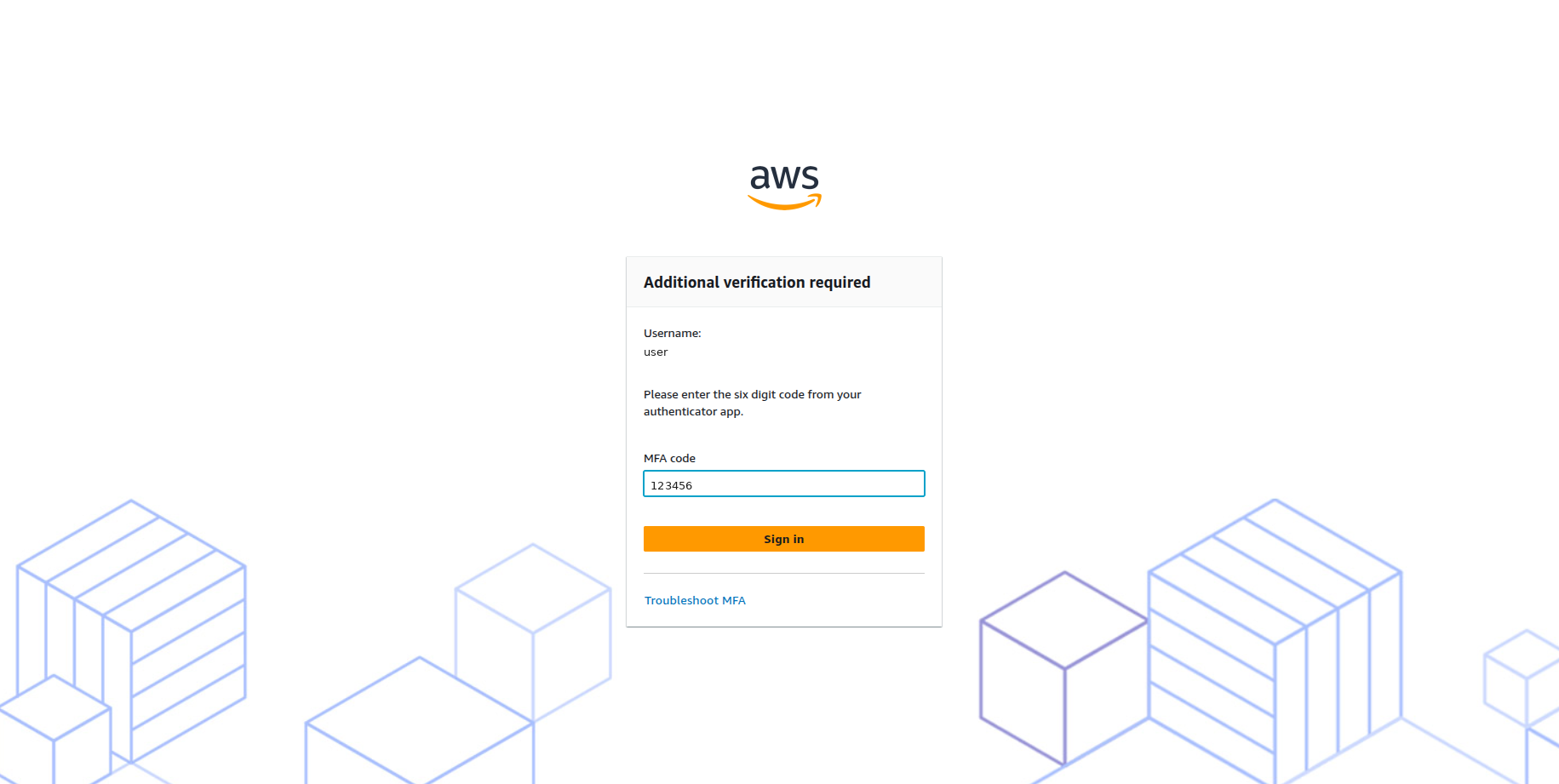
You are sent to the familiar AWS sign-in page. Enter your username, password and MFA code.
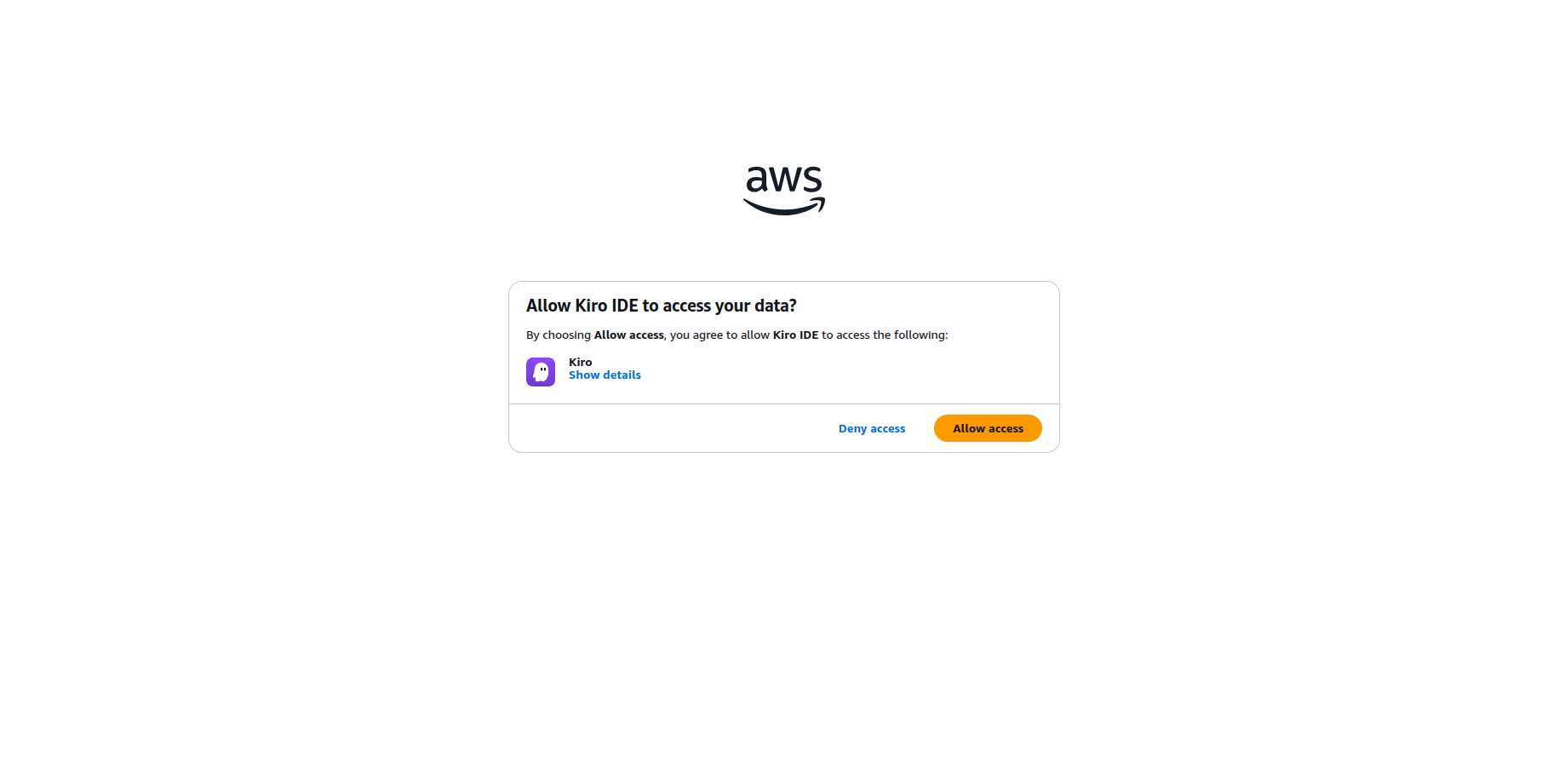
Finally, AWS asks Allow Kiro IDE to access your data? Choose Allow access. Switch back to the IDE, and you are signed in on the plan your admin picked.
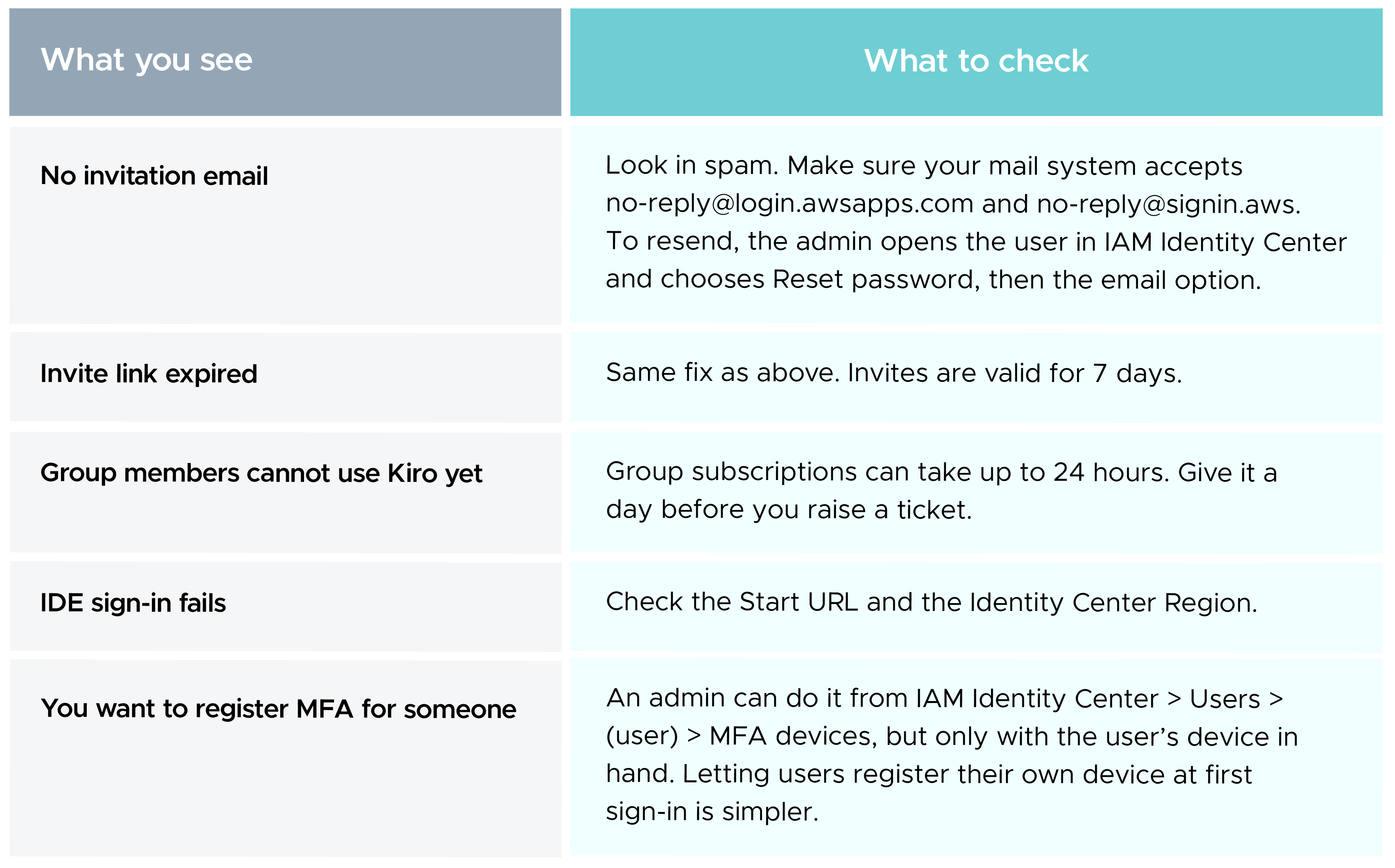
Everything lives on the Users & Groups page in the Kiro console:
Billing is monthly per user. When you add someone in the middle of a month, the charge is prorated. You can see the costs in AWS Billing and Cost Management, next to the rest of your AWS spend.
That is the whole journey: enable Kiro, pick plans, send people through one invite, and they sign in with the same identity they already use for AWS. No shared cards, one bill, and one place to switch access off when someone moves on.
If you get stuck, the official docs below are the best place to look. They change more often than blog posts do.
Plans, prices, Regions and screens are as of October 2026. AWS updates Kiro often, so please check the official pages before you plan a budget or a rollout.
99% of companies saved up to 15% monthly with this plan & achieved peak performance.