Problem statement
Many organizations run non-persistent virtual desktops on Amazon WorkSpaces Pools. AWS has announced that WorkSpaces Pools will stop accepting new customers from July 31, 2026, and that support ends on December 31, 2027. Teams that depend on it now have a fixed deadline and need a replacement.
The hard part is not just " find another service". The replacement has to keep everything users and security teams already rely on:
- A non-persistent model, so sessions are clean and instances are released when the session ends.
- Windows application support, including custom line-of-business apps.
- Shared capacity with demand-based scaling, so we are not paying for one desktop per person.
- Pay-as-you-go pricing that stays predictable.
- Persistence where it matters: user settings and files must survive even though the instance does not.
- Strong security: sensitive data should stay in AWS, not on unmanaged laptops.
Objective
Our goal was to find and validate a managed, non-persistent replacement for WorkSpaces Pools that delivers the same capabilities without adding operational burden. We turned that into measurable objectives:
- Feature parity: Non-persistent sessions, Windows apps, single- and multi-session options all work.
- Data protection: Clipboard, file transfer and printing are controlled per stack; data stays in AWS.
- No lost work: User settings and files persist across sessions.
- Right-sized capacity: Fleet scales with demand; idle capacity stays low.
- Low operational effort: AWS manages the streaming infrastructure; our team manages images and policies only.
- Predictable cost: We can explain every cost line before go-live, not after the first bill.
Options we considered
a.Stay on WorkSpaces Pools
- Pros: No change for users today.
- Cons: No new customers after July 31, 2026; support ends December 31, 2027.
- Hidden cost: Forced, rushed migration later, with deadline risk.
b.Persistent desktops (WorkSpaces Personal)
- Pros: Familiar desktop, user state lives on the desktop.
- Cons: Changes the model: one desktop per user instead of shared capacity.
- Hidden cost: Paying for desktops that sit idle, plus re-training users and re-doing app packaging.
Self-managed Windows EC2 remote desktop environment
- Pros: Full control over the Windows environment, applications, configurations, networking, and security policies.
- Cons: The customer is responsible for instance management, scaling, patching, availability, backups, security, and ongoing Windows administration. By default, a Windows AWS EC2 instance supports up to 2 concurrent RDP sessions for administrative access. If more than 2 concurrent user sessions are required, additional RDS (Remote Desktop Services) licenses are required.
- Hidden cost: Administrative effort, Windows licensing, monitoring, maintenance, troubleshooting, and on-call support can significantly increase the overall operational cost beyond the AWS EC2 infrastructure charges.
Amazon WorkSpaces Applications (chosen)
- Pros: AWS-recommended path; non-persistent, Windows apps, single and multi-session, managed scaling.
- Cons: New service concepts (image, fleet, stack) to learn; some limits to design around.
- Hidden cost: Image upkeep, NAT/VPC endpoints, AWS S3 storage and idle fleet time (covered below).
We chose WorkSpaces Applications (formerly Amazon AppStream 2.0) because it is the alternative AWS recommends and it matched our requirements one-to-one, as the list below shows.
- Non-persistent environment: Sessions run on streaming instances that are released when the session ends.
- Windows applications: Supported on Windows-based fleets and images.
- Multi-session: Supported on Always-On and On-Demand Windows fleets.
- Application streaming: Only the display is streamed to the user.
User application settings: Application settings persistence. - Persistent user storage: AWS S3-backed Home Folders, plus Google Drive and OneDrive for Business.
- Dynamic capacity: Fleet auto scaling, or Elastic fleets where AWS manages capacity.
- Pay-as-you-go: Charges depend on fleet type and running instance time.
- Browser or client access: Supported through a web browser or the client.
- Custom applications: Image Builder for custom images.
The solution: Amazon WorkSpaces Applications
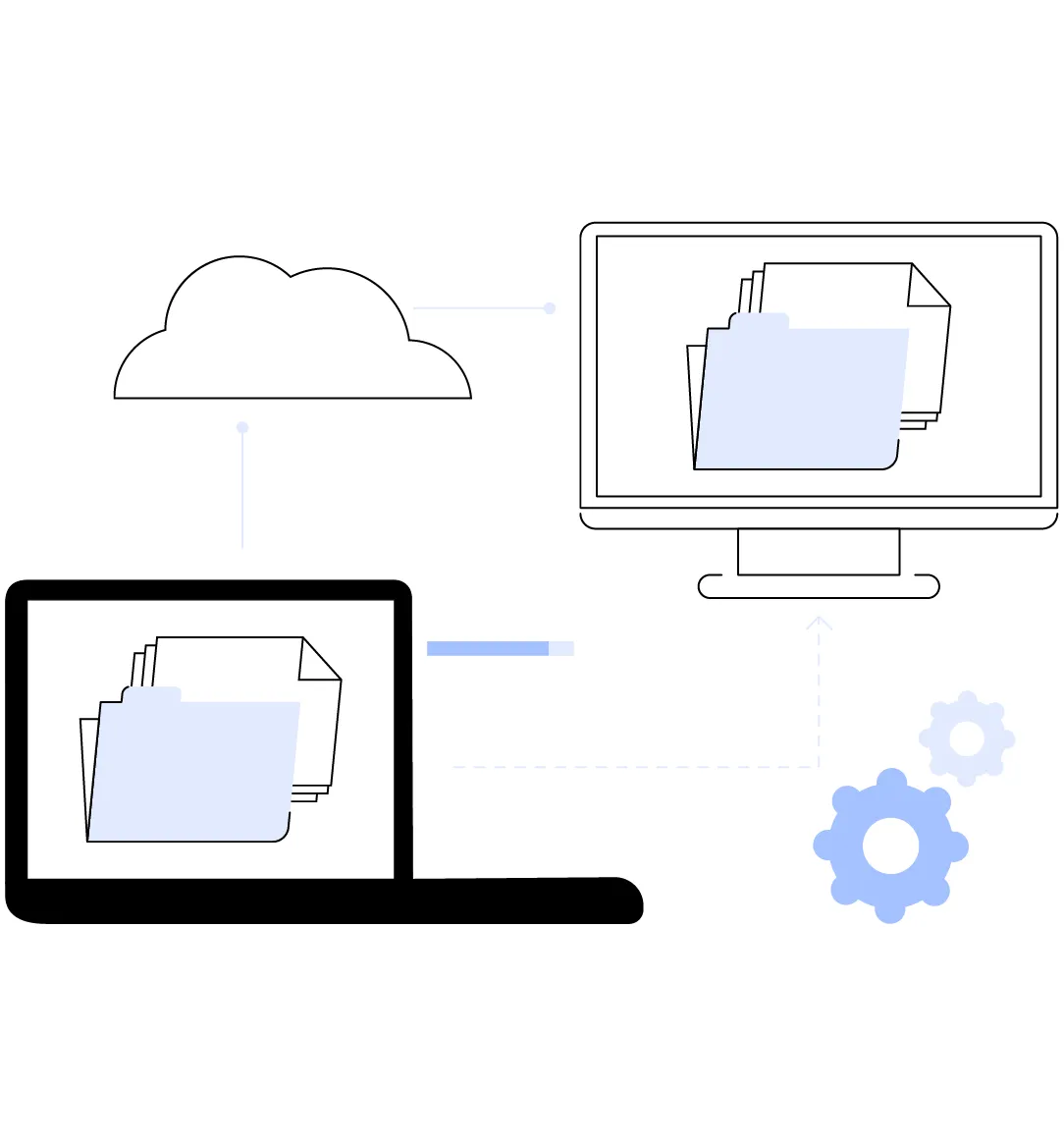
Amazon WorkSpaces Applications is a fully managed application streaming service. Users securely reach their desktop applications from almost any location and device, without installing the applications locally. AWS manages the infrastructure that hosts and delivers the applications, and capacity can be adjusted to match demand. It supports both single-session and multi-session Windows environments.
Core components
- Image Builder: Install, configure and test the applications users need, then create a custom image.
- Fleet: The pool of streaming instances (virtual machines) where user applications run. Types: Always-On, On-Demand, Elastic.
- Stack: The user-facing layer: an associated fleet, user access policies and storage configuration.
- User pool: Built-in user access management. SAML 2.0 federation and streaming URLs are also supported.
How a streaming session works
- A user signs in through the user pool, SAML 2.0 login or a streaming URL.
- The service checks the stack's access policies and assigns an available streaming instance from the fleet.
- The application runs on that instance. Only pixels are streamed to the user; keyboard and mouse input is sent back.
- Files and settings are saved to the configured storage for next time.
- When the session ends or times out, the instance is released and the fleet scales per its scaling policy.
Because the application runs on the streaming instance and not on the endpoint, sensitive data stays in the AWS environment, and users can connect from unmanaged or lightweight devices.
The approach we used, and why (pros, cons, hidden cost)
Each decision below follows the same pattern: what we chose, why we chose it, the pros, the cons
Fleet type: Always-On, On-Demand or Elastic
Approach:
Select the fleet type based on the users' access requirements, application usage pattern, and cost objectives. Always-On suits users who need applications available almost immediately. On-Demand is appropriate when users can tolerate a short startup delay in exchange for lower costs. Elastic is suitable for variable or unpredictable application usage where AWS-managed capacity and application-level delivery through app blocks are preferred.
Select the fleet type carefully because it directly affects user experience, instance availability, operational overhead, and cost. AWS does not allow changing the fleet type after the fleet is created, so consider the expected usage pattern during the initial design.
Always-On
With an Always-On fleet, streaming instances remain running and available even when no users are actively streaming applications. The instances are provisioned in advance and managed using fleet capacity and auto-scaling policies.
Pros:
- Provides near-instant access because the streaming instances are already running.
- Suitable for users who require immediate access to applications or desktops.
- Supports auto-scaling policies to adjust the available capacity based on demand.
- Applications are delivered using WorkSpaces Applications images created through Image Builder.
Cons:
- You are charged the running instance rate for all running instances, including instances that are currently not being used by users.
- Maintaining excess capacity for peak demand can increase costs.
- Capacity planning and auto-scaling configuration are required to balance availability and cost.
On-Demand
With an On-Demand fleet, streaming instances not currently assigned to users remain stopped. When a user starts a session, an available instance is started and the user typically experiences a 1–2 minute startup delay.
Pros:
- Lower cost compared with keeping all instances running continuously.
- Unused instances incur a lower stopped-instance fee rather than the full running-instance rate.
- Suitable for environments where users can tolerate a short startup delay.
- Auto-scaling policies can manage the number of available instances based on demand.
Cons:
- Users experience approximately a 1–2 minute wait while an instance starts.
- Capacity and auto-scaling policies still need to be configured and managed.
- Users cannot start streaming until enough instances are provisioned and available.
Elastic
With an Elastic fleet, WorkSpaces Applications manages the pool of streaming instances, reducing the need for customers to forecast concurrency or configure traditional fleet auto-scaling policies. Applications are delivered using app blocks. When a user selects an application, WorkSpaces Streams downloads the required app block and mounts it to a streaming instance before the application starts.
Pros:
- AWS manages the provisioning and availability of the streaming instances.
- No traditional auto-scaling policies are required.
- Suitable for variable, unpredictable, or spiky usage patterns.
- You are charged for Elastic streaming instances only for the duration of the streaming session, with a 15-minute minimum charge per session.
Cons:
- Applications must be delivered using app blocks, rather than the traditional image-based model used by Always-On and On-Demand fleets.
- Users may experience startup time while the app block downloads and mounts before the application launches.
- Elastic fleets require you to configure appropriate maximum concurrency, and your account must have sufficient streaming-instance limits.
- Elastic fleets have different capabilities and configuration options from Always-On and On-Demand fleets, so they may not be suitable when a full desktop experience or image-based application delivery is required.
Session model: single-session or multi-session
Approach:
Choose the session model based on application requirements, user isolation, performance requirements, security controls, and expected concurrency.
A single-session fleet provides one streaming session per instance. This model is generally appropriate when users require dedicated computing resources, strong session isolation, or applications that consume significant CPU, memory, or other system resources.
A multi-session fleet allows multiple users to run independent streaming sessions on the same Windows Server instance. This model can improve resource utilization and reduce the number of instances required when applications are lightweight and can safely operate in a shared operating-system environment.
Why Session Model Matters
The session model directly affects resource utilization, scalability, cost, application performance, and user isolation.
With single-session, the number of required streaming instances generally increases with the number of concurrent users. For example, if 20 users need to stream applications simultaneously, the environment may require approximately 20 streaming instances, depending on the configured capacity and application resource requirements.
With multi-session, several users can share the same streaming instance. As a result, the same number of concurrent users may require far fewer instances, potentially reducing infrastructure costs. However, the instance must have sufficient CPU, memory, and application capacity to support all active sessions.
Single-Session
In a single-session configuration, each streaming instance supports one user session at a time. The user receives a dedicated operating-system environment for the duration of the streaming session.
Pros:
- Provides dedicated compute resources to each user.
- Provides stronger isolation because users do not share the same operating-system instance.
- Suitable for resource-intensive applications or applications that require dedicated system resources.
- Easier to troubleshoot application performance because resource consumption can be associated with an individual user/session.
- Provides greater flexibility when applications have compatibility issues with shared environments.
Cons:
- Infrastructure requirements increase as concurrent user demand increases.
- For example, supporting 50 concurrent users may require approximately 50 streaming instances, subject to the configured fleet capacity.
- Higher instance consumption can result in higher infrastructure costs.
Additional capacity planning and scaling configuration may be required for environments with fluctuating demand.
Multi-Session
In a multi-session configuration, multiple users can simultaneously connect to and run applications on the same Windows Server-based streaming instance. Each user receives an independent session while sharing the underlying operating system and instance resources.
Pros:
- Multiple users can share the same compute resources.
- Requires fewer streaming instances for the same number of concurrent users compared with a single-session deployment.
- Can significantly improve resource utilization when applications are lightweight, and users do not continuously consume high CPU or memory.
- Can reduce infrastructure costs by consolidating multiple user sessions onto fewer instances.
- Useful for environments with a large number of users and predictable application resource requirements.
Cons:
- Users share the underlying operating system and instance resources, so resource contention can affect application performance.
- Applications must be tested to confirm that they support a multi-user Windows Server environment.
- Security and isolation requirements must be carefully evaluated because multiple users are operating on the same instance.
- A resource-intensive application or user can consume a significant portion of the available CPU or memory and potentially affect other sessions.
- Capacity planning must consider the number of sessions per instance and the resource requirements of the applications.
- Troubleshooting can be more complex because multiple user sessions share the same underlying instance.
Availability and Compatibility
Multi-session fleets have different requirements and capabilities compared with single-session fleets. In WorkSpaces Applications, multi-session is available for Windows Server-based fleets and is not supported with Elastic fleets. Elastic fleets use a different application-delivery model based on app blocks.
Therefore, multi-session should be considered primarily when the workload is suitable for a shared Windows Server environment and the organization is comfortable with the corresponding resource-sharing and isolation model.
Persistence: settings and user files
Approach:
Use Application Settings Persistence to retain supported application settings between streaming sessions and Home Folders to provide persistent user file storage through Amazon S3. Where users already rely on cloud storage such as Google Drive or OneDrive for Business, these services can also be used to maintain access to their existing files and workflows.
Why:
WorkSpaces Application sessions can be non-persistent, but users should not have to reconfigure their applications or lose access to their working files every time a new streaming session starts.
Persistence provides continuity across sessions while keeping the underlying streaming environment non-persistent.
Pros:
- Application settings such as browser favorites, plugins, connection profiles, and supported UI preferences can be retained between sessions.
- Home Folder data is stored in Amazon S3, providing persistent storage independent of the streaming instance.
- Users can access their persistent files across different streaming sessions.
- Existing storage platforms such as Google Drive or OneDrive for Business can be used when they are already part of the organization's user workflow.
Cons:
- Application Settings Persistence is supported for Windows-based stacks and has application-specific compatibility considerations.
- Home Folders use an AWS S3 bucket in the AWS Region, and the same bucket can be used across users and stacks in that Region.
- Administrators with appropriate access to the underlying AWS S3 bucket may be able to access or modify users' stored files, so IAM and bucket permissions should be configured carefully.
- Individual files larger than 5 GB can cause issues with Home Folder backup and restore operations.
- The streaming instances require network connectivity to Amazon S3, either through internet connectivity or an AWS S3 VPC endpoint.
Security: layered controls
Approach:
Use multiple security layers rather than relying on a single control. Combine stack access policies, user-session controls, VPC networking, VPC endpoints, IAM roles, and least-privilege S3 permissions to protect applications and user data.
Why:
WorkSpaces Applications provides controls at different levels, allowing organizations to restrict what users can do within a streaming session while also controlling how the streaming environment accesses internal and AWS resources.
Pros:
- Stack settings can control user capabilities such as clipboard access, file upload/download, printing, and local drive access.
- VPC endpoints can provide private connectivity to supported AWS services without requiring traffic to traverse the public internet.
- IAM roles allow applications running on streaming instances to obtain temporary AWS credentials through AWS STS, avoiding the need to store long-term access keys.
- Home Folder access can be restricted using AWS S3 bucket policies and IAM permissions, limiting who can access users' persistent data.
- Network security can be further controlled using security groups, route tables, and network ACLs according to the application architecture.
Cons:
- Stronger restrictions can reduce user convenience—for example, disabling clipboard, printing, uploads, or downloads may affect normal workflows.
- Multiple security layers increase the configuration, documentation, monitoring, and auditing effort.
- Multi-session fleets allow multiple users to share the same underlying instance, so the session isolation and application security model should be validated against the organization's requirements.
- Incorrect IAM, S3, or network configuration can either expose resources unnecessarily or prevent legitimate applications from accessing required services.
Scaling and capacity
Approach:
For Always-On and On-Demand fleets, use fixed or dynamic auto scaling plus scheduled actions for business-hours peaks. For spiky demand, use Elastic fleets and let AWS manage capacity.
Why: Capacity should follow demand: enough instances for users, but no idle fleet overnight.
Pros:
- Scaling is built on Application Auto Scaling, so scheduled and dynamic policies can be combined.
- Elastic fleets remove scaling work entirely.
Cons:
- Policies need tuning and load testing; too aggressive scale-in makes users wait, too cautious wastes money.
- Capacity can be short if subnets or limits are constrained.
Networking
Approach:
Use at least two private subnets in different Availability Zones, size them for the maximum capacity of all fleets that share them, and use a NAT gateway for internet access.
Why: Multiple AZs improve fault tolerance and reduce insufficient-capacity errors. Proper sizing avoids running out of IP addresses during scale-out.
Pros:
- Better resilience across Availability Zones.
- A NAT gateway lets instances reach the internet while blocking inbound connections from it.
- Unlike the default internet access option, the NAT approach supports more than 100 fleet instances.
Cons:
- Subnets that are too small can exhaust IP addresses; the fix is dedicated subnets or adding subnets to the fleet.
- More network components to design and operate.
Image management
Approach:
Use Image Builder to install and test applications, then create a custom image. Match the base image to the instance family you plan to use.
Why: Every user gets the same tested applications, and changes are controlled through new image versions.
Pros:
- Consistent, repeatable application delivery.
- You can test on the image builder before any user sees the change.
Cons:
- Every patch or application update means building a new image and rolling it out to the fleet.
- The base image must match the instance family, which limits flexibility.
Putting it together: configuration steps
A working environment needs a fleet associated with a stack, plus at least one application image. Here is the sequence, with the cost to watch at each step.
1. Create an image
- What you do: Launch an image builder, install and test applications, create the image.
- Hidden cost to watch: Image builder billed while running; stop it when done.
2. Create a fleet
- What you do: Choose fleet type, instance type and image. Set maximum session duration and disconnect timeout. Choose single- or multi-session.
- Hidden cost to watch: Long timeouts keep instances billed after users leave. Oversized instance types.
3. Attach networking
- What you do: Select a VPC and at least two subnets in different AZs, attach up to five security groups, optionally join Active Directory.
- Hidden cost to watch: NAT gateway, VPC endpoints, IP exhaustion, and directory service charges if you join a domain.
4. Create a stack
- What you do: Name the stack and associate the fleet.
- Hidden cost to watch: Forgotten stacks and fleets keep running.
5. Configure storage and user settings
What you do: Enable Home Folders or other storage, application settings persistence, and clipboard, file transfer and printing permissions.
Hidden cost to watch: AWS S3 storage and requests; admin time for bucket policy.
6. Provide access
- What you do: Create users in the user pool, integrate a SAML 2.0 identity provider, or generate streaming URLs.
- Hidden cost to watch: Identity provider setup effort and any per-user software licensing.
For session behavior, the console allows a maximum session duration of up to 5,760 minutes (96 hours). Users still connected shortly before the limit are prompted to save their work. The disconnect timeout controls how long a session stays active after a user drops, so users who reconnect within that window return to their previous session.
Conclusion and next steps
Amazon WorkSpaces Applications covers the key capabilities that WorkSpaces Pools customers rely on: a non-persistent model, Windows applications, single- and multi-session options, persistent settings and storage, and demand-based scaling, all as a managed service. A stack ties these together by defining the fleet, user access policies and storage that users experience.
The service is a strong fit, but the instance price is only part of the bill. The teams that stay on budget are the ones that decide on fleet type, timeouts, networking and storage deliberately, and that review the hidden-cost cheat sheet before go-live.
- Build a sample stack and fleet using the tutorials in the Administration Guide.
- Validate your applications on an image builder.
- Pilot with a small user group before planning the full migration.
- Test session performance, persistence behavior and scaling under realistic load.
- Review the security and networking design with your architecture team.
- Build a cost model that includes every line in the cheat sheet, not just instance hours.